
Code Editor
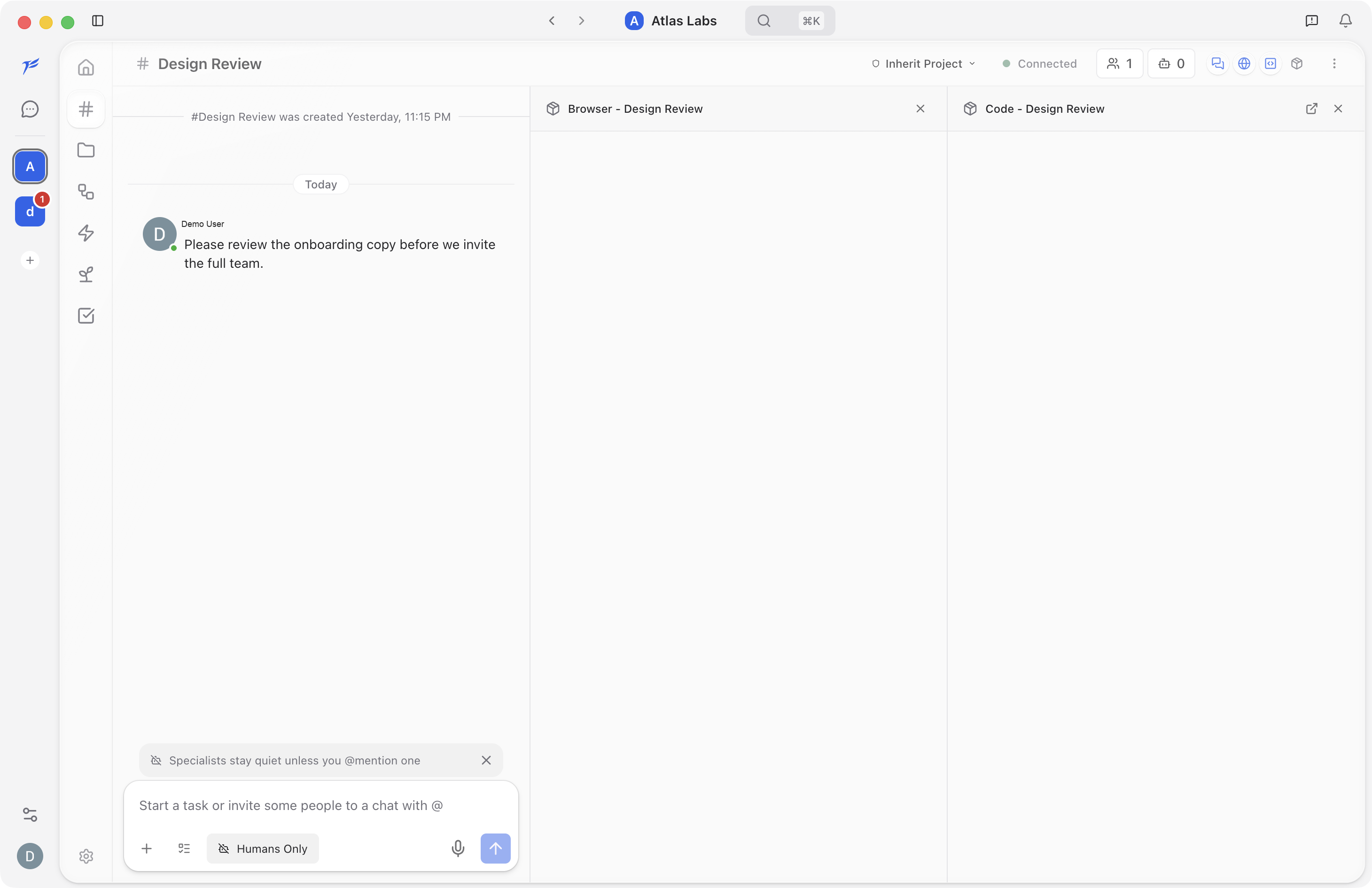
The Code Editor opens beside the active chat. In project conversations, it gives you a place to review files, diffs, and specialist changes without leaving The AI Platform.
When to Use It
Use the Code panel when you want to:
- Review files connected to a project conversation.
- Watch or inspect changes a specialist makes.
- Compare the running UI in the Embedded Browser with the source files that drive it.
- Keep code context visible while you ask follow-up questions in chat.
Open the Code Editor
Open a channel and click the Code panel button in the channel header. The panel opens beside the chat. Click the button again, or use the panel close control, to hide it.
The panel is scoped to the active conversation. Switching channels changes the panel context.
Project Context
The Code panel is most useful when the channel belongs to a project with linked repositories or local folders. In that state, the editor can show project files and specialist edits.
In a regular workspace channel with no project repository attached, the panel can open but may not show files yet. Connect a project when you want the editor to work with source code.
Work with the Browser
The Code panel pairs with the Embedded Browser for project development work:
- Open a project channel.
- Ask a specialist to make a change.
- Open the Code panel to review files or diffs.
- Open the Browser panel to preview the result.
- Continue the conversation with follow-up requests.
When source maps and project metadata are available, browser-to-editor handoff can take you from a rendered element to its source file.
Editing Files
When a project is connected and editing is allowed, you can edit files in the panel directly. Those edits belong to the project/chat context, so use the same care you would use in any code editor.
For larger changes, prefer asking a specialist to make the change and then review the result in the Code panel.
Language Servers
For code intelligence such as completion, go-to-definition, diagnostics, and find-references, install Language Server Protocol providers from Language Servers settings. Language servers run locally and help both you and specialists understand the codebase.
Related
- Embedded Browser. Preview pages beside the chat and pair UI feedback with code.
- Projects. Link repositories and folders so the editor has files to show.
- Git Worktrees. Give project work isolated branches.
- Language Servers. Install LSP providers for code intelligence.
- Specialists. How specialists use project and code context.