Connections
Before specialists can respond to messages, you need at least one LLM provider configured. The Connections page is where you set that up, along with default model preferences and external service integrations.
Opening Connections
Click on your workspace name at the bottom of the sidebar to open the workspace menu, then select Settings. In the Settings panel, click Connections in the left column under Configure.
The page has two tabs: Model Providers and Linked Accounts.
Model Providers
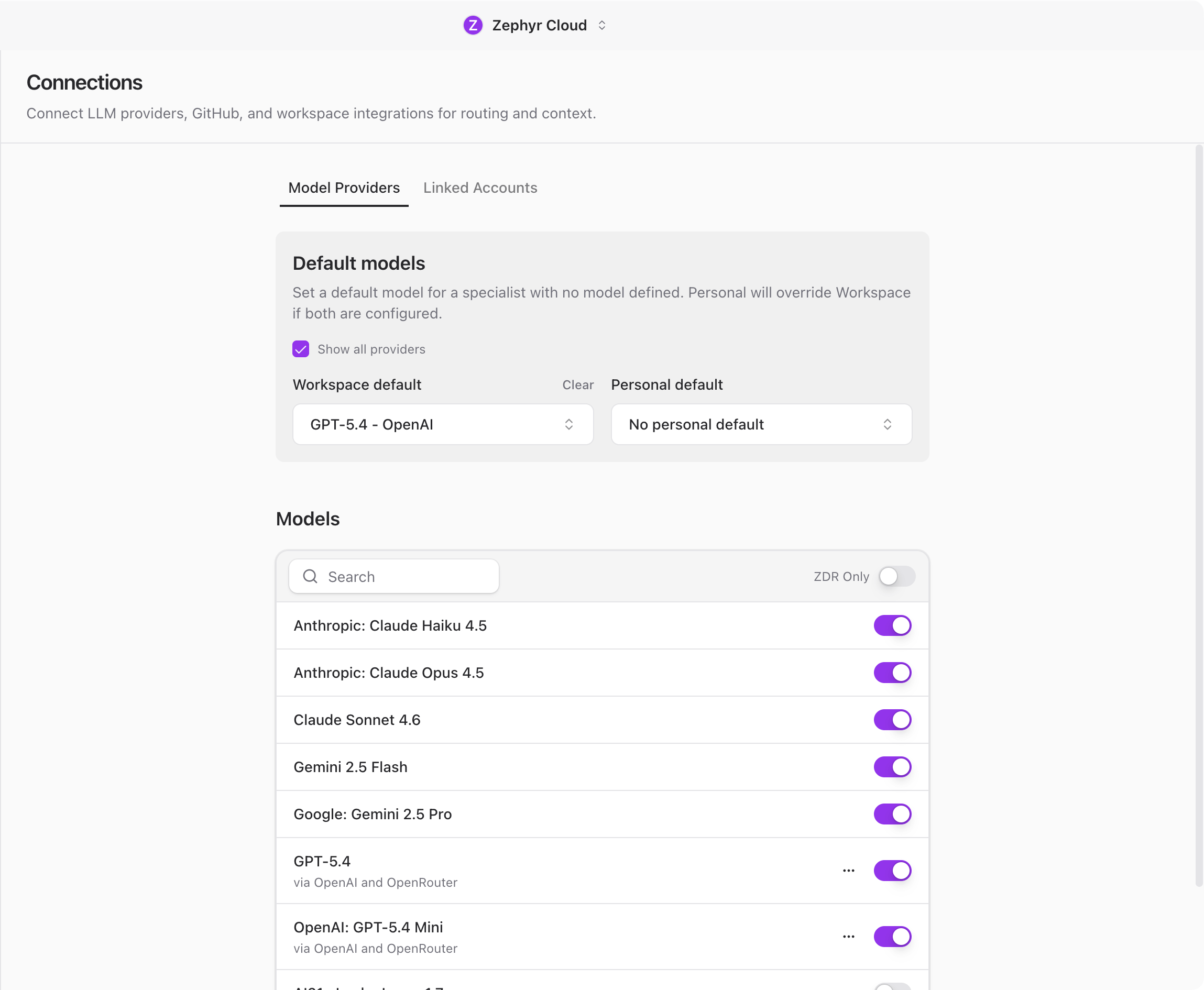
The Model Providers tab is split into three areas: default models, the model list, and provider configuration.

Default Models
At the top of the tab, you can set a default model for specialists that do not have their own model defined. There are two levels:
- Workspace default applies to everyone in the workspace. Only workspace admins can change this.
- Personal default applies only to you and overrides the workspace default.
This means you can set a workspace-wide standard (like GPT-4) while individual team members choose something different for their own work.
Available Models
Below the defaults, a searchable list shows every model available across your configured providers. This is a read-only view so you can see what is available before picking defaults or configuring specialists.
Configure Providers
Scroll down to the Configure Providers section to add or manage your API keys. Each provider expands into a form where you paste your credentials.
The AI Platform supports these providers:
- OpenRouter accesses models from multiple providers through a single API key. This is the default fallback provider.
- OpenAI provides GPT models. Requires an OpenAI API key.
- Anthropic provides Claude models. Requires an Anthropic API key.
- Generic OpenAI supports any endpoint that follows the OpenAI API format. Useful for self-hosted models or smaller providers.
- Amazon Bedrock hosts AWS models. Requires an AWS access key, secret key, and region.
- Cloudflare Workers AI requires a Cloudflare account ID and API token.
- Hugging Face includes both API-hosted models and local models you can download and run on your machine.
- NVIDIA NIM provides NVIDIA inference endpoints. Requires an NVIDIA API key.
- Zephyr Built-in requires no API key. Powered by your Zephyr subscription. If your workspace has an active Zephyr plan, this provider is available immediately with no setup.
To add a provider, expand it under Configure Providers, fill in the required credentials, and save. The provider and its models appear in the model list immediately.
If you are not sure which provider to use, start with OpenRouter. It gives you access to models from multiple providers through a single API key.
Linked Accounts
The Linked Accounts tab lets you connect external services to your workspace. These connections give specialists additional context from your existing tools.
Available integrations:
- GitHub provides repository access, pull requests, and code context. You can also configure a personal access token for enhanced features.
- Slack provides channel and message context.
- Notion provides page and database access.
- Figma provides design file context.
- Linear provides issue and project tracking.
Click a service to see its details and connect it. Workspace admins can enable or disable integrations for the entire workspace.
Next Steps
With a provider connected, you are ready to start chatting. Head to Your First Channel to create a channel and talk to a specialist.