
Settings
Settings has two entry points. Use the app rail or command palette to open Workspace settings, where you manage workspace details and configure tools. Use your profile menu to open User settings such as Personal, Preferences, and Notifications.
To open the User settings view shown below, click your profile avatar and choose Profile or Preferences.
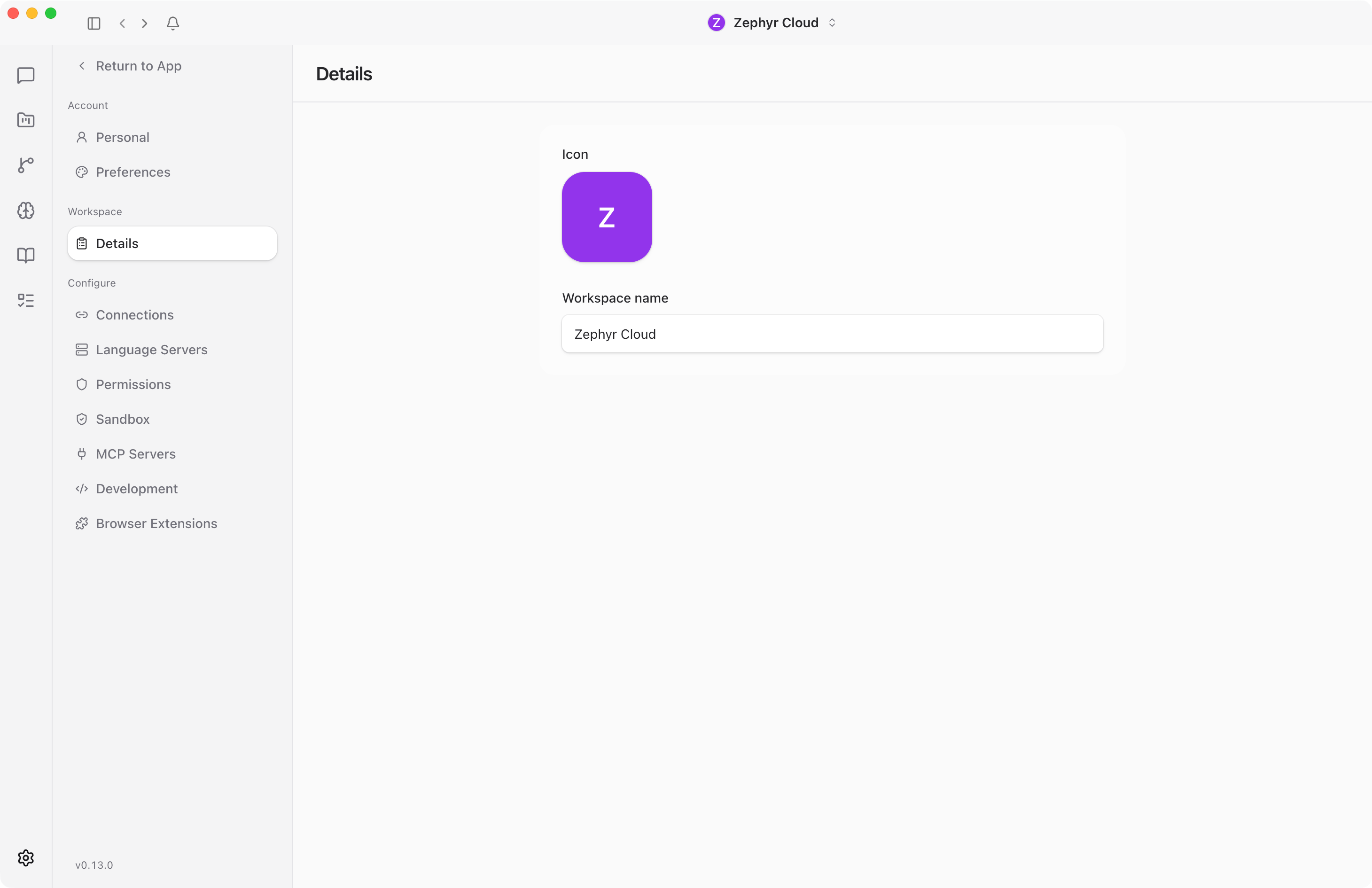
On desktop, open Apps in the sidebar and choose Marketplace to browse or manage Miniapps. The Marketplace panel uses the same sidebar layout as Settings. Its Miniapps section contains Installed, Browse, Publish, and Develop. On mobile, open Workspace Settings > Miniapps.
User Settings
The User group applies to your account.
- Personal controls your profile, display name, title, timezone, and account actions.
- Preferences controls theme, UI scale, content preferences, and link-opening behavior.
- Notifications controls OS notifications, in-app notifications, quiet time, broadcast mentions, and thread replies.
Configure
The Configure group controls workspace tools and specialist infrastructure.
- Connections manages model providers, integrations, and credentials.
- Specialists controls workspace delegation settings for specialist-to-specialist work.
- Skills lists installed skills and local skill sources.
- Memory shows workspace memory health and searchable saved context when enabled.
- Language Servers manages local language server providers for code intelligence.
- Permissions shows computer-use permissions and persisted channel/specialist grants.
- Sandbox manages sandbox profiles and violation logs.
- MCP Servers connects Model Context Protocol servers.
- Webhooks receives external events into channels or workflows.
- Development manages local models and development-only tools.
Some sections are permission-gated. If you do not see a section, your role may not include access to it.
Workspace Settings
Workspace-scoped settings such as workspace details, members, billing, referrals, and workspace preferences can appear from workspace-specific settings entry points. Those pages are separate from the global User settings view shown above.