
Channels Overview
Channels are where conversations happen. Each channel is a dedicated space for a topic, project, or team, and any number of people and specialists can join in. This page covers the current chat layout you see when you are working in a channel.
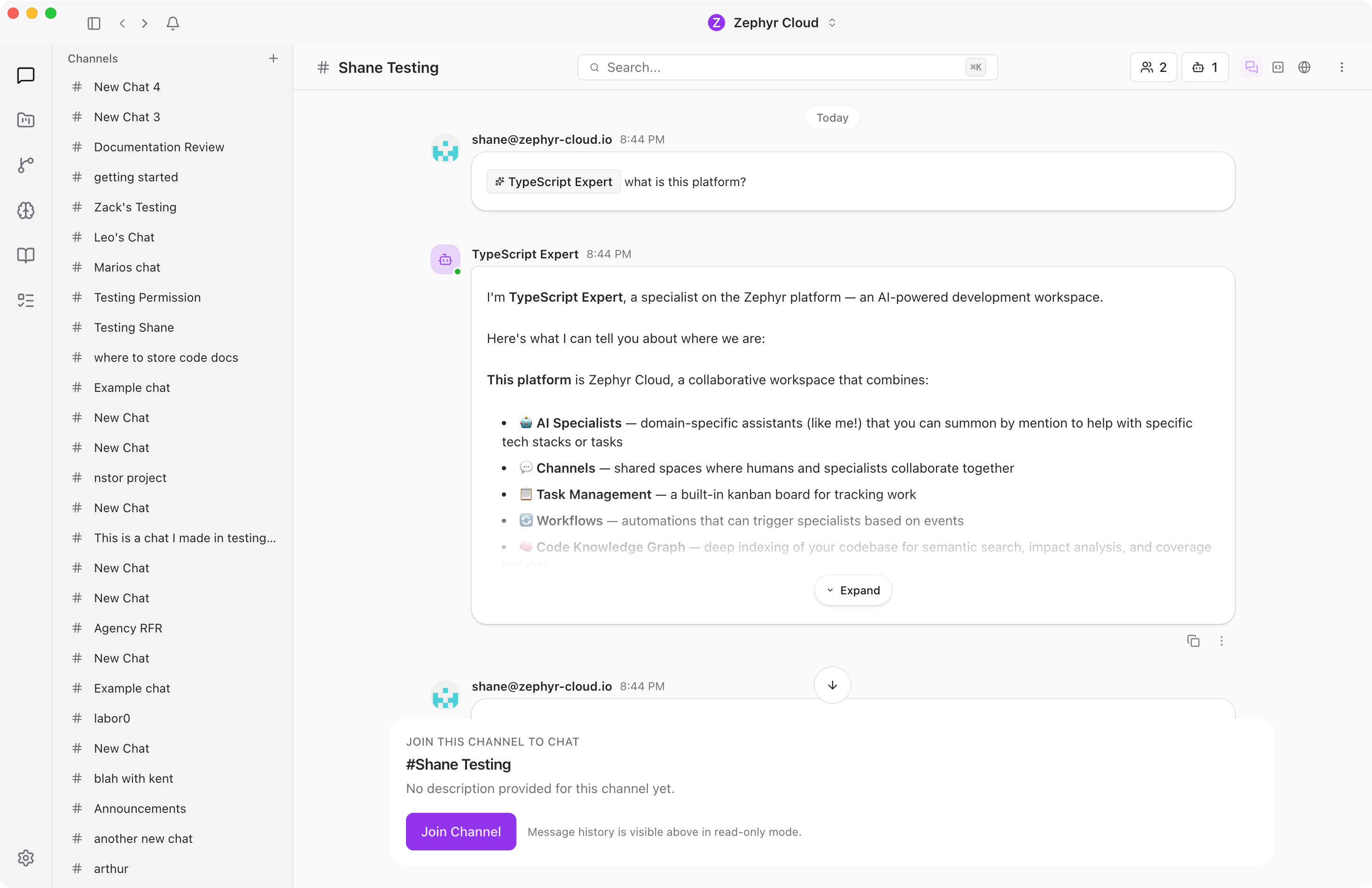
Workspace and App Rails
The left side of the app has two rails.
The workspace rail is the far-left column. Use it to switch workspaces, open Chloe, and reach workspace-level actions.
The app rail sits next to it. Use the chat icon to return to channels and direct messages. The same rail also opens Projects, Workflows, Specialists, Knowledge Garden, Tasks, and Settings.
Conversations
A chat conversation can be a channel, a direct message, or a project channel.
Channels are group conversations. Each channel has a name and can be public or private. Use channels for topics like launch planning, design review, support triage, or engineering standup.
Direct messages are one-to-one or small-group conversations with people in your workspace. They use the same message composer as channels, but they do not need a channel topic.
Archived conversations are hidden from the main list until you expand the archived section. Restore an archived conversation when you need to bring it back into active work.
Message Area
The center of the screen is where messages appear. When you open a channel or DM, the header shows the conversation name and the main panel shows the message history.
When a channel has no messages yet, the message area is empty and the composer is ready at the bottom. See Your First Channel for a walkthrough.
Messages stream in as they arrive. Specialist messages have their own avatar and name so you can tell them apart from messages sent by people. For more on working with messages, see the Messaging guide.
Channel Header
The header at the top of the message area shows the channel name on the left and channel controls on the right.
Depending on the conversation and your permissions, the header can include:
- Project inheritance for choosing whether the channel inherits project context.
- Connection status so you can see whether the channel is connected.
- Participant count for seeing how many people and specialists are in the conversation.
- Channel details for editing the channel name, description, visibility, sandbox profile, members, and specialists.
- Panel menu items for opening channel resources such as Tasks, Knowledge, Workflows, and History.
- Panel toggles for opening companion panels such as Browser and Code when available.
Side Panels
Chat has side panels for work that belongs with a channel but should not clutter the message stream.
Open Channel Details when you need channel settings, members, or specialists. See Channel Details for the full settings dialog.
Open the channel header menu and choose a resource item when you need channel-specific work panels:
- Tasks shows tasks linked to this channel.
- Knowledge shows knowledge plots attached to the channel.
- Workflows shows workflows tied to the channel.
- History logs channel events.
Browser and Code panels are covered separately because they require project or development-server context:
Quick Search and Navigation
Press Cmd+K on macOS or Ctrl+K on Windows and Linux to open the command palette. Use it to jump to Chat, Projects, Specialists, Workflows, Settings, and other workspace surfaces without scrolling.
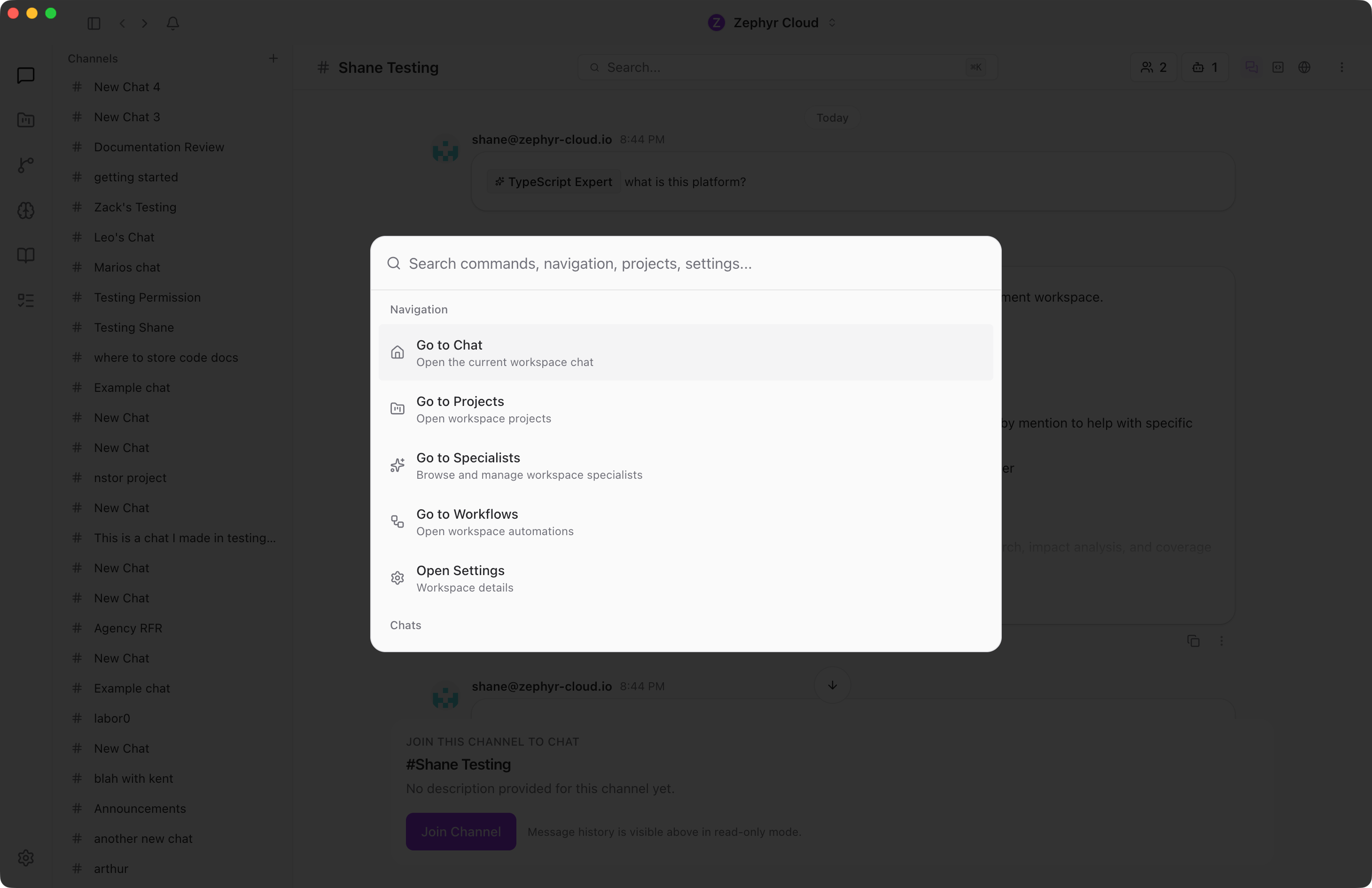
The search dialog also helps you find channels, DMs, people, and actions that are available in your current workspace.
Notifications
When a specialist or teammate replies to you, sends a message in a channel you are in, or @-mentions you, a notification appears in the top-right of the app. Click the notification to jump straight to the message.
What to Explore Next
- Messaging. Sending messages, attachments, mentions, and composer modes.
- Channel Details. Channel settings, members, tasks, knowledge, workflows, and history.
- Threads. Side conversations within a channel.
- Specialists. Adding AI specialists to your channels.
- Projects. Organizing channels into project work.