What are Specialists
Specialists are AI agents with specific expertise. They live in your workspace, join channels, and respond when you mention them. Each one is tuned for a particular job, whether that is writing code, reviewing designs, planning projects, or analyzing data.
The Specialists Marketplace
Click the Specialists icon in the workspace rail on the left side of the app. This takes you to the marketplace, where you browse, search, and add specialists to your workspace.
The Specialists Sidebar
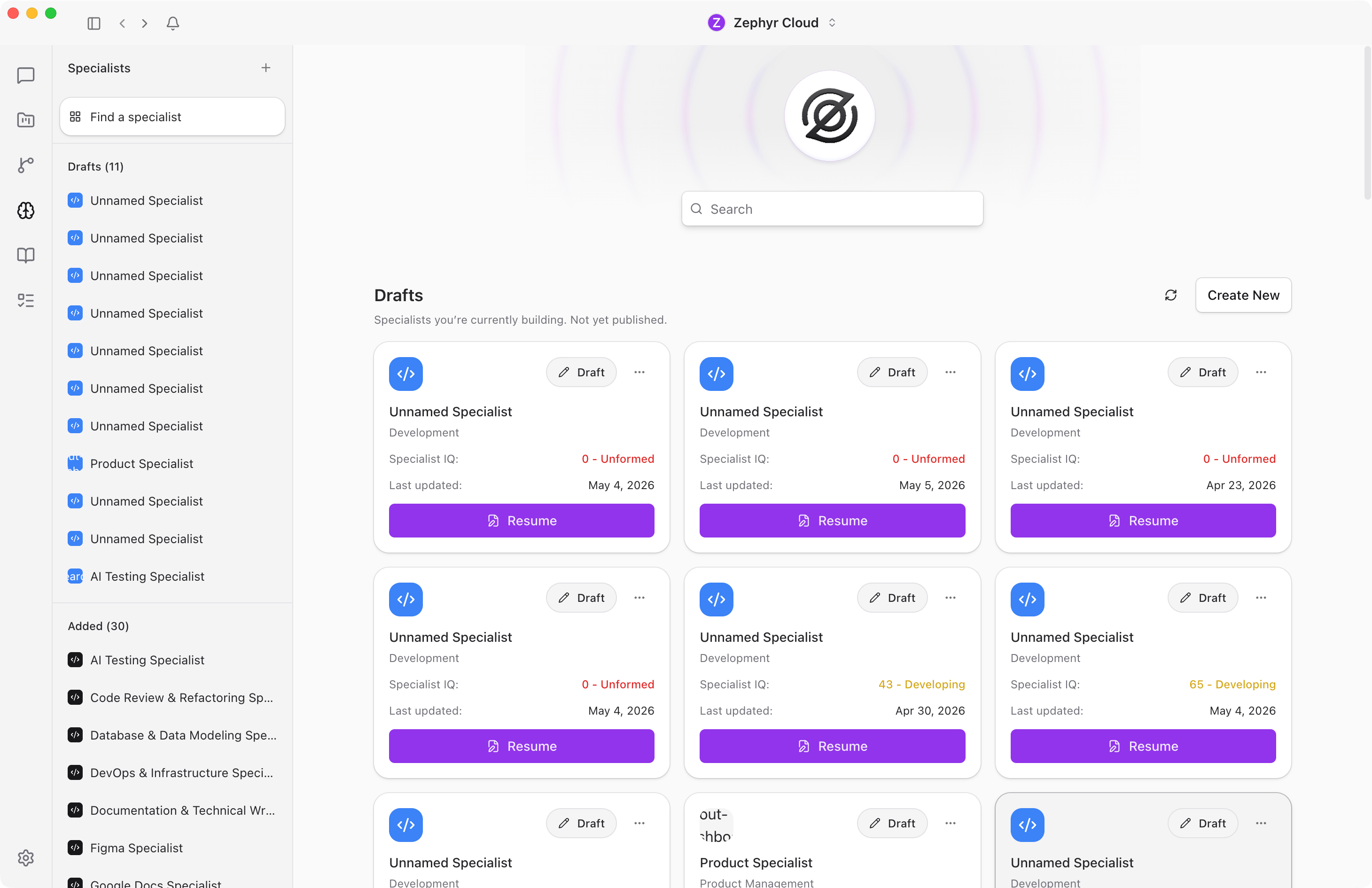
The secondary sidebar on the left of the Specialists area gives you quick navigation back to the marketplace and shortcuts to your work in progress.
- Find a specialist at the top takes you back to the main marketplace view.
- Drafts lists every specialist you are currently building. Hover any draft to reveal a context menu with Rename and Delete actions.
- Added lists every specialist that has been added to the workspace. Hover any entry for a Remove action.
- The + button in the sidebar header creates a new specialist draft and opens the builder.
Search and Browse
The search bar at the top of the marketplace filters specialists by name or description. Clear the search to return to the full browse view.
When no search is active, the marketplace organizes specialists into three top sections, in this order:
- Bundled Specialists. Built-in specialists that ship with the app. The header has a small refresh button if you ever need to re-fetch the list.
- Featured. Highlighted specialists worth a closer look.
- Categories. Every available specialist grouped by category. See Categories below.
Categories
Specialists are grouped into eight categories. Each category has a short description so you know what to expect.
Specialist Cards
Every specialist appears as a card. Cards give you a quick summary so you can decide whether to add a specialist without opening its full detail page.
Each card shows:
- Icon. A visual identifier for the specialist.
- Name. The display name.
- Publisher. Who created the specialist, with a verified badge for officially maintained ones.
- Description. A short summary of what the specialist does.
- "Can run locally" indicator. Shown when the specialist works without external network services.
- Add / Added button. One click to add or remove the specialist from your workspace.
Adding and Removing a Specialist
Adding a specialist takes one click. Click the Add button on any card. The button changes to a green Added badge, and the specialist becomes available in every channel in your workspace.
To remove a specialist, click the Added badge or use the three-dot menu (see below). The specialist is removed from every channel and stops responding to mentions.
Specialist Detail Page
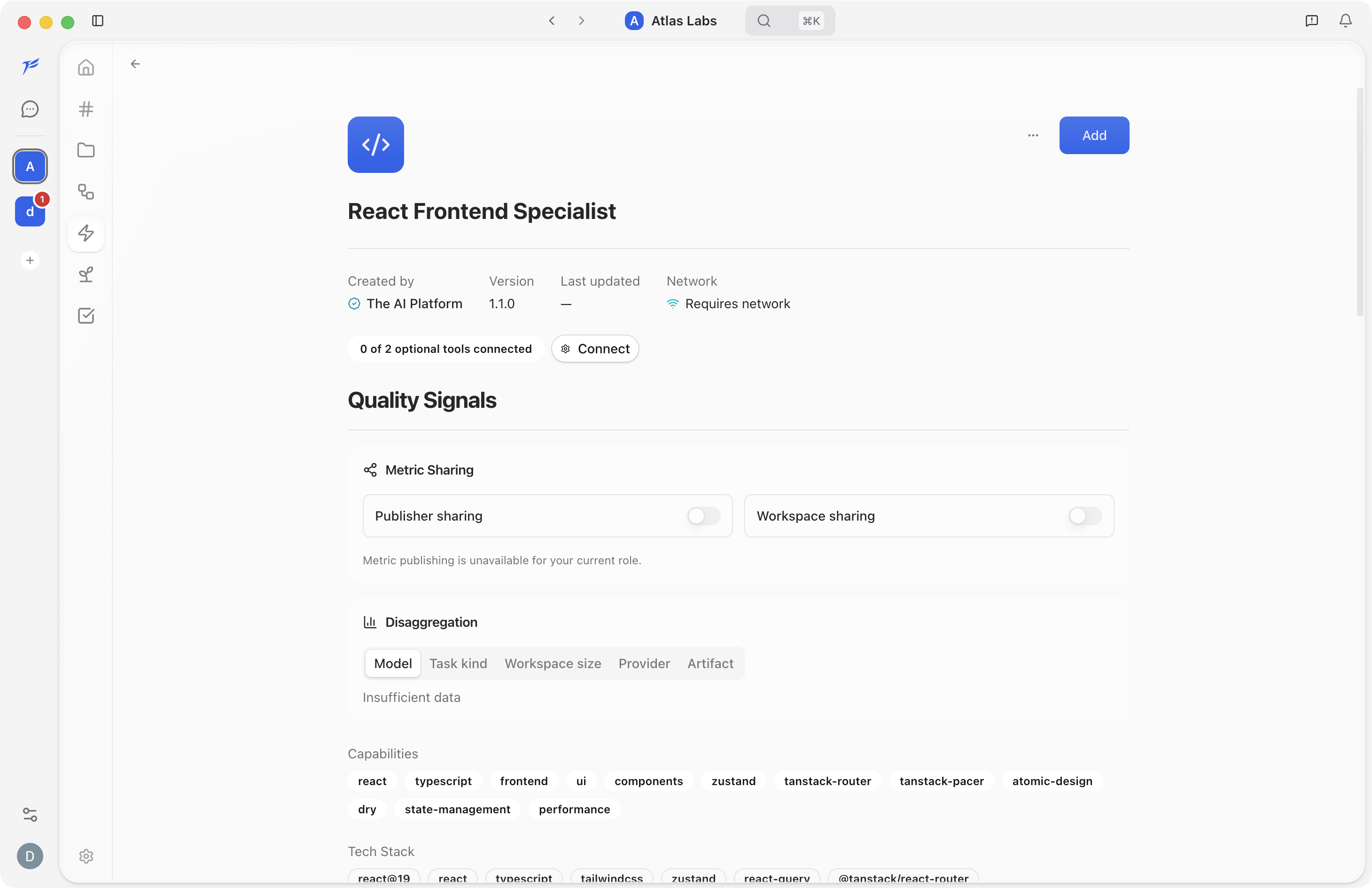
Click any card to open its detail page. The page contains everything about the specialist:
- Header. Specialist icon, name, publisher, version, and an Add / Remove / three-dot menu action area.
- Metadata. Created by, version, last updated date, network requirements (online or local), and external links.
- Capabilities and Tech Stack. Badges showing what the specialist can do and which technologies it understands.
- Preferred Models. The AI models the specialist works best with.
- Model Overrides. Workspace-level and personal overrides for the specialist's model. See Model Overrides.
- Knowledge sources. Documentation and context the specialist uses for grounded responses.
- Overview. A longer markdown description.
- Workflows. Any automated workflows tied to the specialist.
The Three-Dot Menu
The three-dot button (⋯) next to the Add / Remove button opens a menu of additional actions. The options depend on whether the specialist is custom or built-in, and whether it is currently added.
- Rename (custom only) — Change the display name without opening the builder.
- Edit (custom only) — Jump straight into the builder for that specialist.
- Duplicate — Create a copy of the specialist as a new draft. Works for built-in specialists too, which is the easiest way to start a custom specialist from a known-good template.
- Delete (custom only) — Permanently remove the custom specialist from the workspace.
- Remove (built-in, when added) — Remove the specialist from the workspace without deleting it. You can re-add it from the marketplace any time.
Provider and ZDR Filters
In the Model Overrides section, two checkboxes control which models appear in the override pickers:
- Show all providers. When unchecked, the picker only shows providers you have already connected. Check it to see every provider, including ones you have not configured yet.
- ZDR only. Filters to providers that offer Zero Data Retention. ZDR filtering is available on the Basic plan and higher.
Built-in vs Custom Specialists
There are two kinds of specialists.
Built-in specialists ship with the app and are maintained by The AI Platform team. They cover common tasks like code review, documentation writing, and project planning. Built-in specialists show a verified badge.
Custom specialists are created by people in your workspace using the specialist builder. They can be tailored to your team's specific domain, tools, and workflows.
Both types appear side by side in the marketplace.
Running Locally
Some specialists are designed to run entirely on your machine without sending data to external services. These show a "Can run locally" indicator on their card. Use them when data privacy is a priority.
Guides
- Working with Specialists. Mention, interact with, and get the most out of specialists in your channels.
- Building Specialists. Create your own custom specialists with the builder.
- Builder Details. Walk through every tab in the builder.
- Model Overrides. Change which AI model a specialist uses at the workspace or personal level.