Development
Tools for downloading and managing local AI models via Hugging Face. Find this under Development in the Settings sidebar.

Local Models
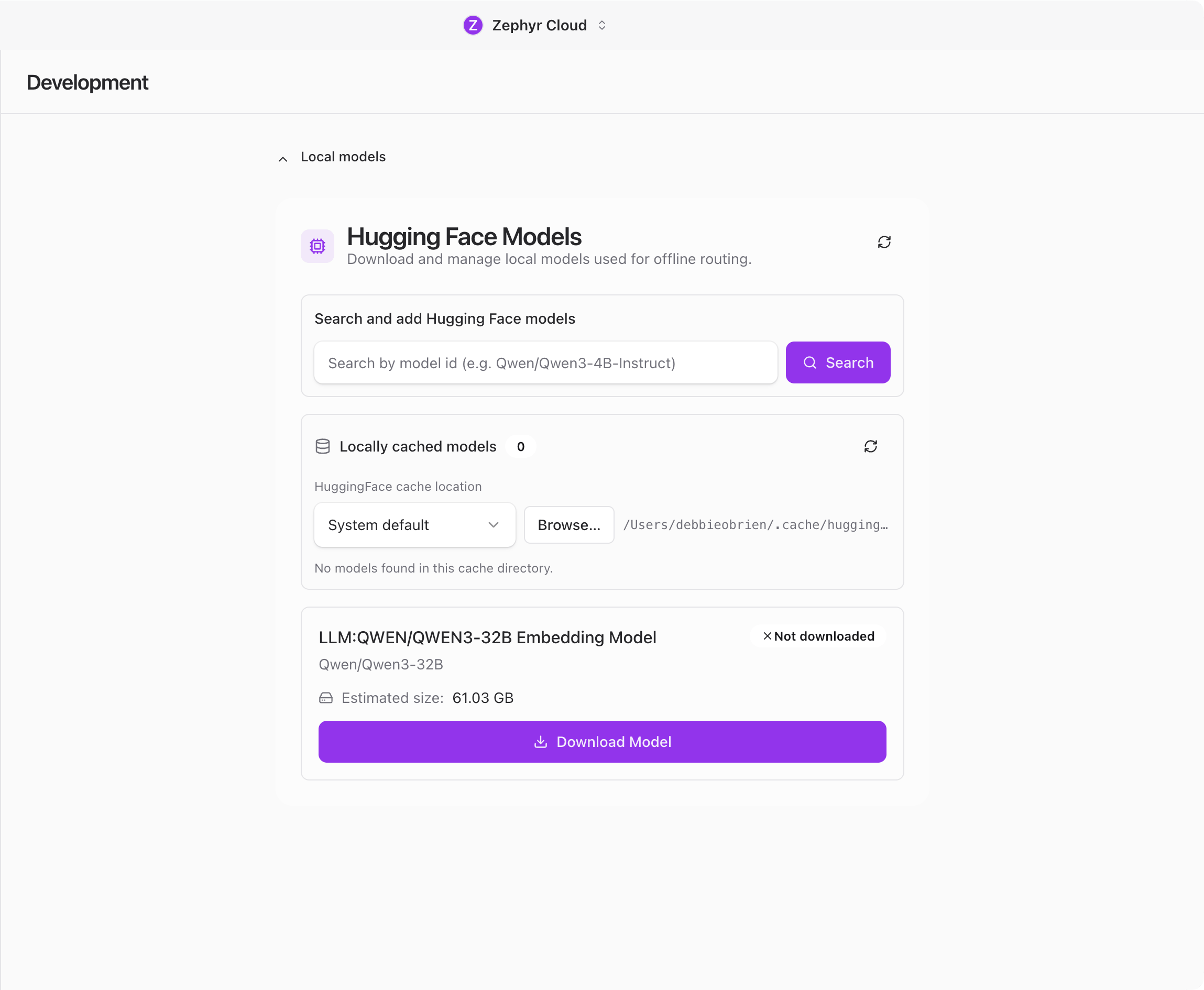
The main section is Local models, shown as a collapsible panel that is open by default. This is where you manage Hugging Face models that run directly on your machine.
Search
Type a model name to search Hugging Face. Results show available models with their descriptions and sizes so you can pick the right one before downloading.
Download
Click a model from the search results to start downloading it. A progress bar shows download status. Larger models can take a while depending on your connection speed.
Cached Models
Below the search area, a browser shows models already downloaded to your machine. Each entry displays the model name, file size, and status. You can check for updates or remove cached models you no longer need.
Why Local Models
Running models locally means you do not need an API key or internet connection during use. This is useful for offline work, sensitive data that should not leave your machine, or experimenting with models before committing to a provider.
For cloud-based model providers, see Connections.
Testing
A Testing section appears only when the app is running in development mode. Regular users will never see it. It contains debug utilities for developers building the app, including organization CRUD operations, sync testing, member listing, and local state clearing.
Related
- Settings overview for a summary of all settings pages.
- Connections for cloud-based model providers.