Browser Extensions
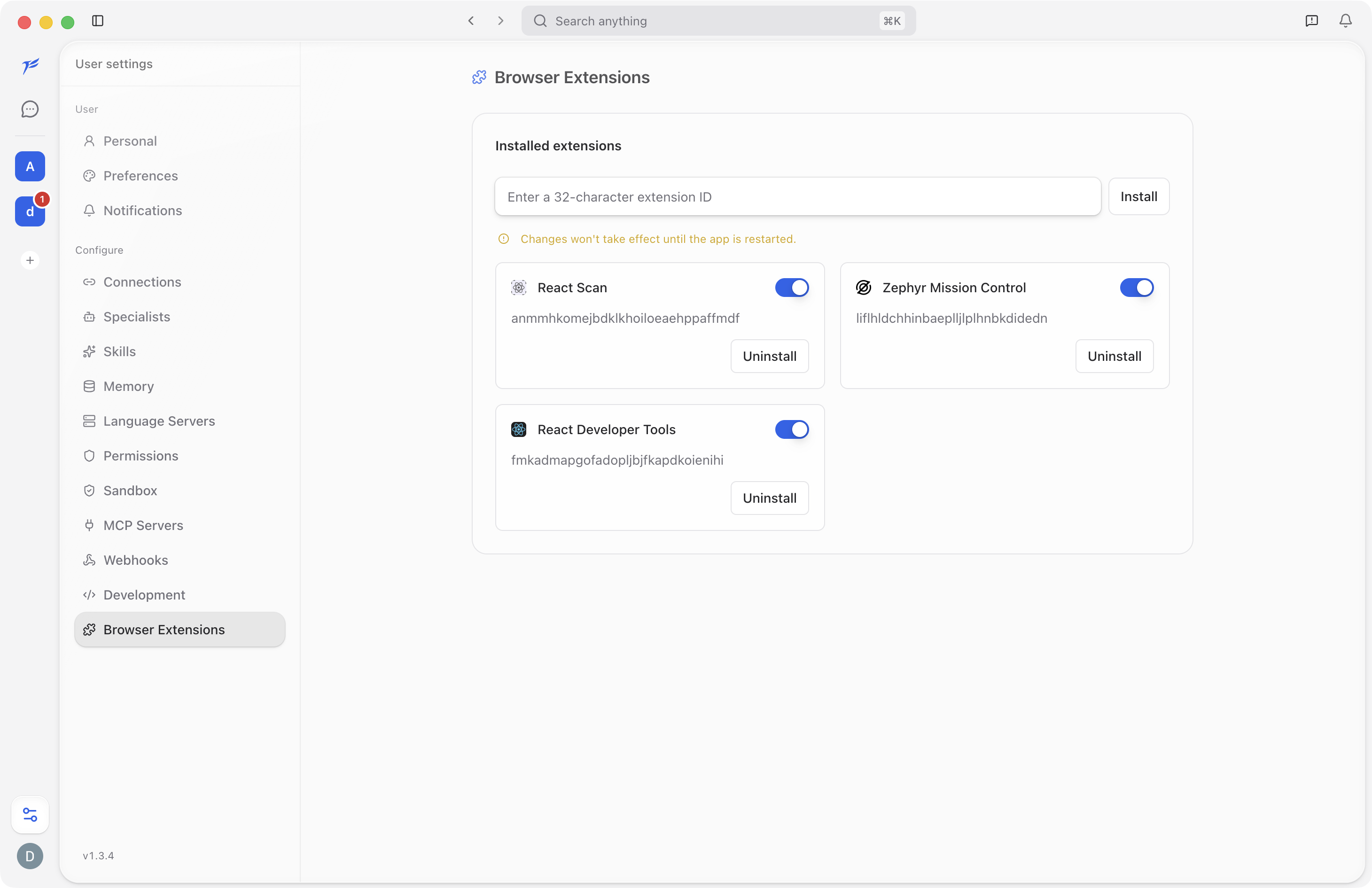
The Browser Extensions settings page lets you install Chrome extensions into the desktop app's embedded browser. This is useful when a specialist needs to drive a real Chrome experience that depends on a specific extension being active.
You will find this page under Browser Extensions in the Settings sidebar. For how the embedded browser itself works, see Embedded Browser.
Desktop Only
Browser Extensions require the desktop app. The section is hidden on mobile and on the web version.
Install an Extension
The page has an input field at the top labelled "Enter a 32-character extension ID". Type or paste a Chrome Web Store extension ID and click Install.
The 32-character ID is the second-to-last segment of any extension's Chrome Web Store URL. For example, in https://chromewebstore.google.com/detail/extension-name/abcdefghijklmnopqrstuvwxyz123456, the ID is abcdefghijklmnopqrstuvwxyz123456.
After installation, the extension appears in the list below the input.
Changes do not take effect until the app is restarted. Quit and reopen the app after installing or removing extensions.
Manage Installed Extensions
Each installed extension appears as a card with:
- The extension's icon and name.
- A short description.
- A toggle switch to enable or disable the extension without uninstalling it.
- A remove button to uninstall the extension entirely.
Disable an extension when you want to keep it installed but turn it off temporarily. Remove it if you do not plan to use it again.
Related
- Settings overview for a summary of all settings pages.
- Sandbox for controlling specialist filesystem and network access.