
Thread Conversations
Threads let you branch off from a message in the main chat for a focused side conversation. They keep the main channel clean while letting you ask follow-up questions, clarify decisions, or discuss one message in more detail.
Voice calls use the same panel location with a session-focused layout. See Voice Sessions to learn how live captions, recaps, Chat, and transcripts fit together.
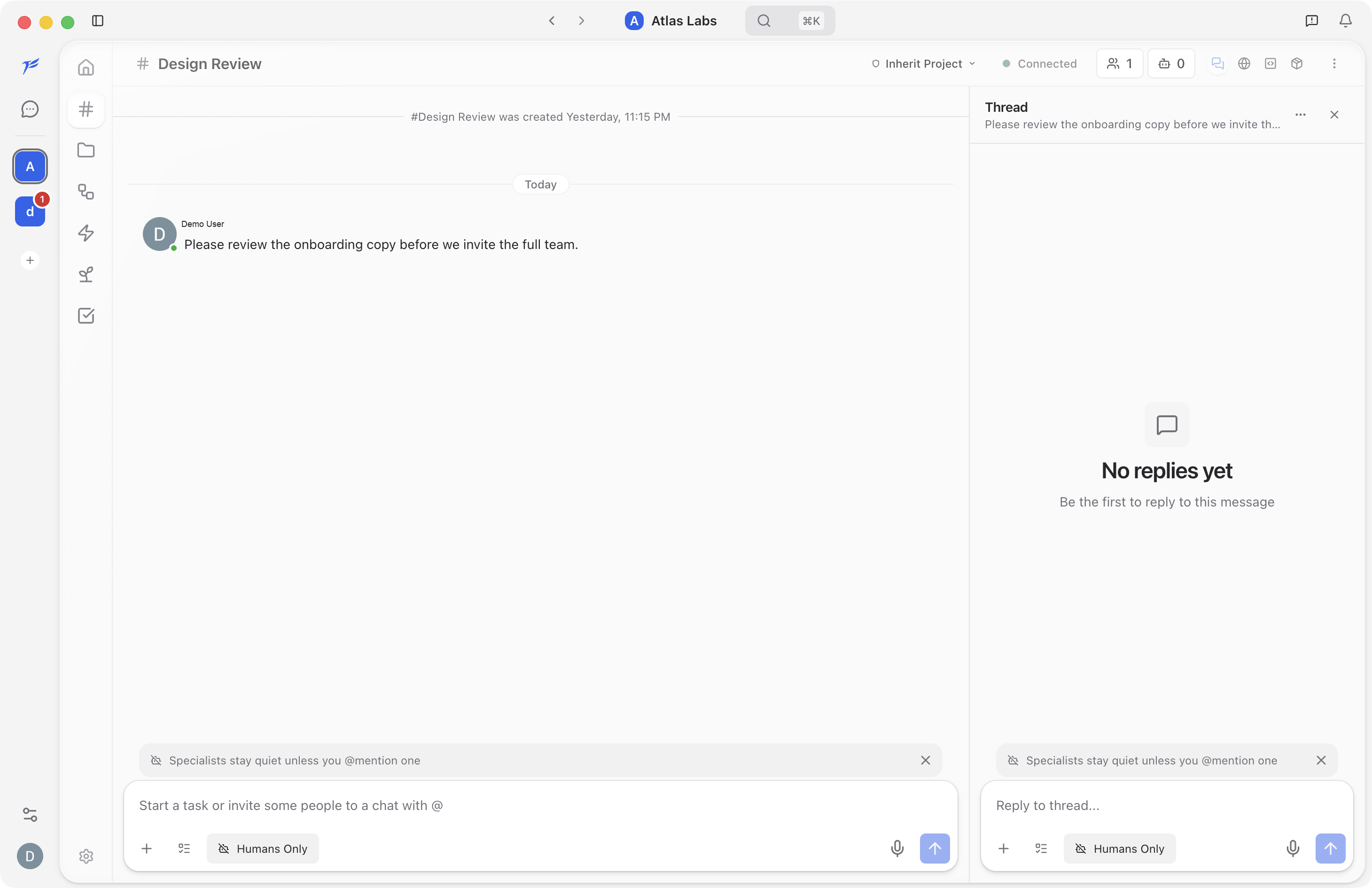
Start a Thread
Open the message actions for the message you want to discuss, then choose Reply in thread. The thread panel opens on the right side of the chat and shows the parent message at the top.
You do not need to create a thread separately. The first reply you send creates the thread automatically.
Reply to a Thread
Use the reply composer at the bottom of the thread panel. Current thread replies are plain text. Type your reply, then press Enter or click the send button.
Replies stay in the thread panel so the main channel remains easier to scan.
Thread replies follow the channel's saved Default audience, which appears in the thread transcript. The thread reply composer does not have its own audience toggle yet. Attachments and voice input are also available only from the main channel composer.
See Replies Back in the Channel
Once a thread has at least one reply, an indicator appears under the original message in the main chat showing how many replies the thread has and who has participated. Click the indicator to open the thread panel and see all replies.
The indicator shows:
- Participant avatars. Up to three stacked profile pictures of people who have replied.
- Reply count. The total number of replies, like "2 replies".
- Last reply time. When the most recent reply was posted.
- Status dot. A colored dot showing the execution state of any specialist activity in the thread. Green means done, yellow means in progress, red means an error, gray means idle.
- Unread badge. A count of new replies you have not read yet.
Hide a Thread
In the sidebar, each channel lists its threads beneath it. If a thread isn't relevant to you, click the close (✕) button on the right of its row. Hiding removes the thread from your channel thread list for you only — it does not change what other members see.
A hidden thread comes back on its own when there is new activity. The next reply (including one that @mentions you) surfaces the thread in the list again automatically, so you never miss a follow-up on a conversation you stepped away from.
Read threads also leave the sidebar after a period without replies. Each channel starts with a 2 days limit. Unread threads and threads with mentions stay visible until you clear their attention.
Channel managers can change the limit from Channel Details under Close inactive threads. The available choices are 1 hour, 24 hours, 2 days, and 1 week.
Find All Threads in a Channel
Open the channel context menu and choose View all threads. The thread drawer lists every thread in the channel, including threads that are no longer in your sidebar. Select a thread to open it, or choose Load older threads to continue through earlier channel history.
Resize the Thread Panel
The thread panel opens as a resizable side panel alongside the main chat. Drag the divider between the main chat and the thread panel to adjust the width of each side. Each side has a minimum width of about a quarter of the screen.
Specialist Reasoning and Tool Calls
When a specialist replies in a thread, you may see two extra sections inside its message:
- Reasoning. A collapsible block showing the specialist's chain of thought. Click to expand and read how the specialist worked through the problem.
- Tool calls. A collapsible block listing every tool the specialist used while preparing the response — searching code, reading files, running commands, looking up tasks. Each tool call shows its inputs and outputs so you can verify the work.
These sections appear automatically when a specialist's response involves reasoning or tool use. They are collapsed by default to keep the reply readable.
Empty Threads
When you open a thread with no replies yet, the panel shows No replies yet and prompts you to be the first to reply. Type into the reply composer and send your message to start the thread.
Read-Only Threads
If you can view a channel but cannot participate, threads may open in a read-only state. In that case, the reply composer is disabled or replaced with a notice.
What to Explore Next
- Channels Overview. Return to the main chat layout guide.
- Messaging. Learn about all the features available when sending messages.
- Voice Sessions. Join a live call, then review its recap, Chat, and transcript afterward.
- Channel Details. Manage channel members, specialists, and settings.