
Visual Workflow Editor
Workflows let you build automations on a visual canvas. Use them when a repeatable process should run the same way each time, such as triage, reporting, data transformation, or specialist-assisted review.
Open Workflows from the app rail. The Workflows home page shows a quick-start guide and action cards such as Visual Editor and Test Execution. Click Visual Editor to open a blank workflow editor.
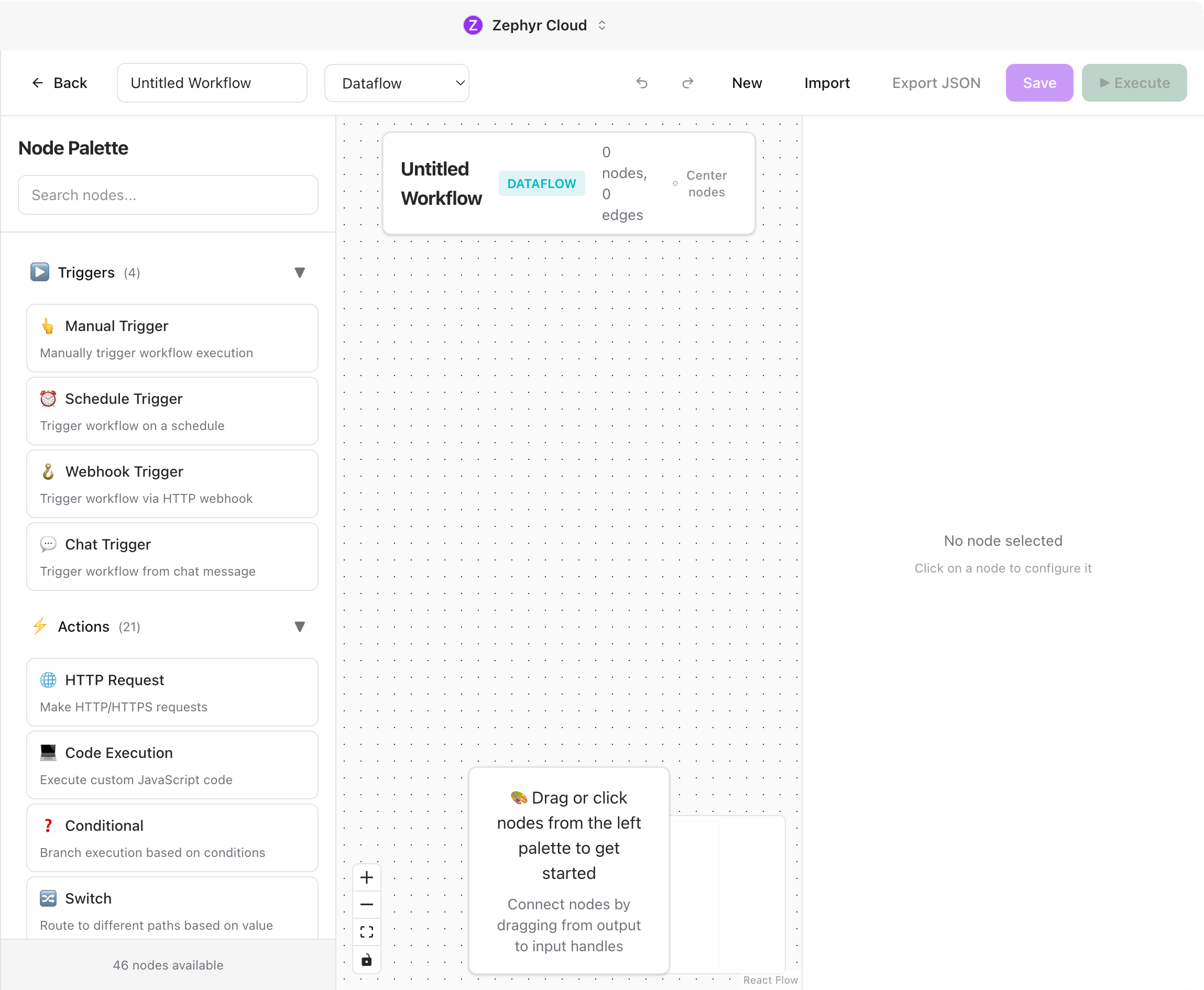
Editor Layout
The editor has four main areas:
- Top toolbar for workflow name, execution mode, undo/redo, new workflow, import/export, save, and Execute.
- Canvas for placing and connecting nodes. The dot grid is the main work area.
- Node palette at the bottom of the canvas. Choose a node type from the palette to add it to the workflow.
- Canvas controls for zoom, fit view, lock, and the minimap.
When the canvas is empty, the editor prompts you to choose a node from the palette.
Execution Mode
The mode selector controls how the workflow runs. Dataflow is the default and is the simplest place to start. Other modes are available for workflows that need state-machine behavior or a hybrid execution model.
Node Palette
Use the node palette to add steps. The palette uses icons for categories such as triggers, actions, transforms, data, files, notifications, and utilities.
After adding nodes, connect them on the canvas to define the execution path.
Save and Execute
Use Save to persist the workflow. Use Execute to run it. The toolbar also includes import and export actions for moving workflows between files or environments.
What to Explore Next
- Build & Run. Learn how to add, connect, configure, save, and execute nodes.
- Run History. Understand workflow run records and output inspection.
- Chat. Trigger or discuss workflows from channels.
- Specialists. Use specialists as workflow steps.