
Projects
Projects group related work in one place. Use a project when a channel, task board, workflow, repository, folder, or knowledge source belongs to the same initiative.
Create a Project
Open Projects from the app rail and click New Project. Give the project a name and decide whether it should be discoverable by people in the workspace.
During creation, you can optionally connect context:
- Repository from URL for a Git repository.
- Add folder for local folders.
- Knowledge Garden when project context starts from existing knowledge.
You can also create the project first and connect context later. Skip the context step when you want an empty project that you can configure after creation.
Open a Project
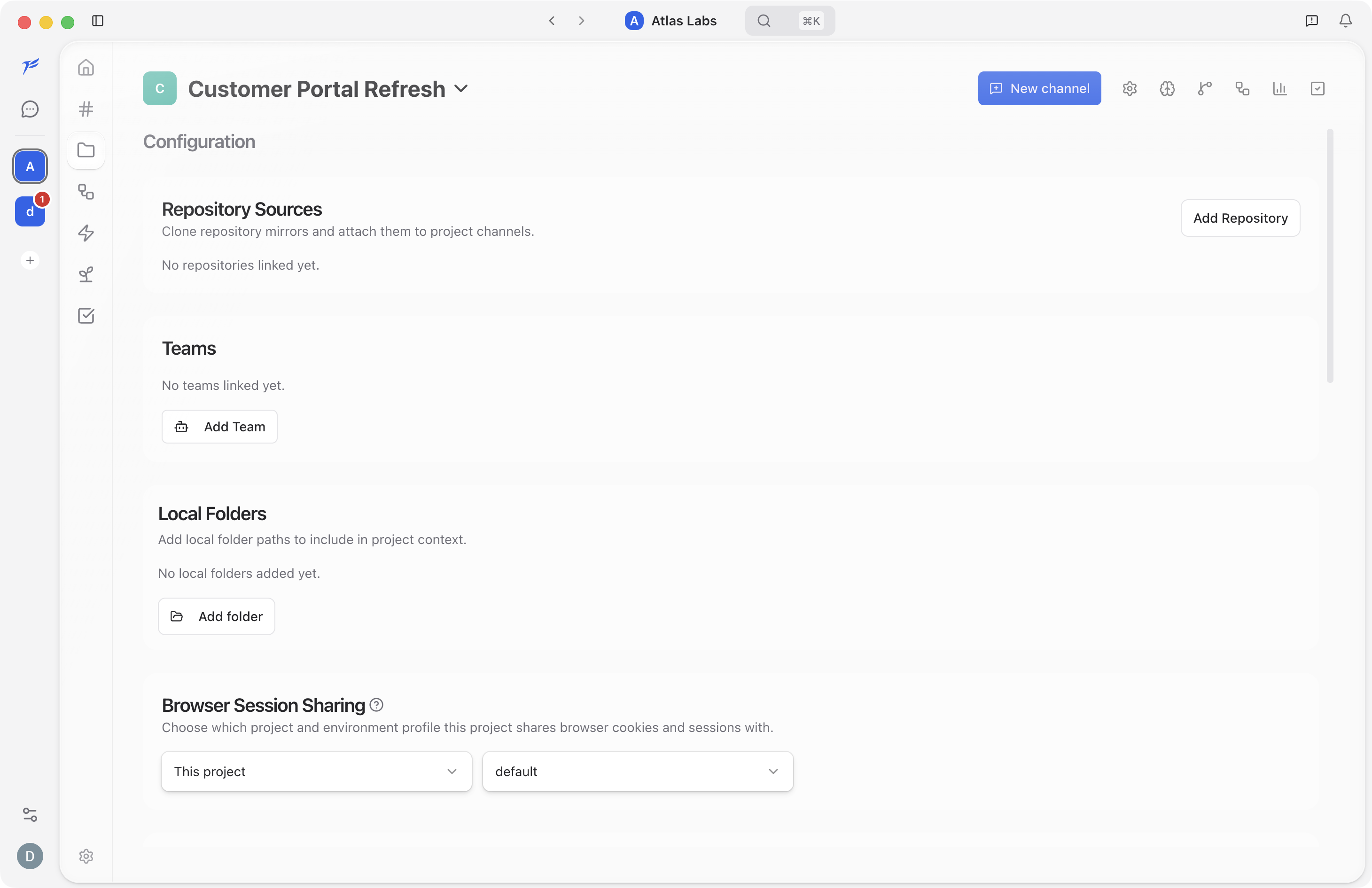
Use the Projects sidebar to select an existing project. Selecting a project opens its configuration page, where you can add repositories, folders, teams, browser session sharing, and other context.
Project Configuration
The project configuration page is the setup hub for the project.
Use it to manage:
- Repository Sources for cloned repository mirrors attached to project channels.
- Teams for groups that should work with the project.
- Local Folders for folder paths included in project context.
- Browser Session Sharing for choosing which project/environment profile shares browser cookies and sessions.
Project Header
Inside a project, the header provides shortcuts to the project’s main surfaces:
- Configuration
- Code Knowledge Graph
- Active Worktrees
- Linked Workflows
- Activity
- Pending Tasks
- New channel for creating a project channel
Some pages show empty states until you connect repositories, folders, tasks, workflows, or knowledge sources.
What to Explore Next
- Configuration. Connect repositories, teams, folders, and browser session sharing.
- Code Knowledge Graph. Understand indexing once code context is connected.
- Git Worktrees. Work with isolated project branches.
- Linked Workflows. Attach workflows to project work.
- Pending Tasks. Track project tasks.