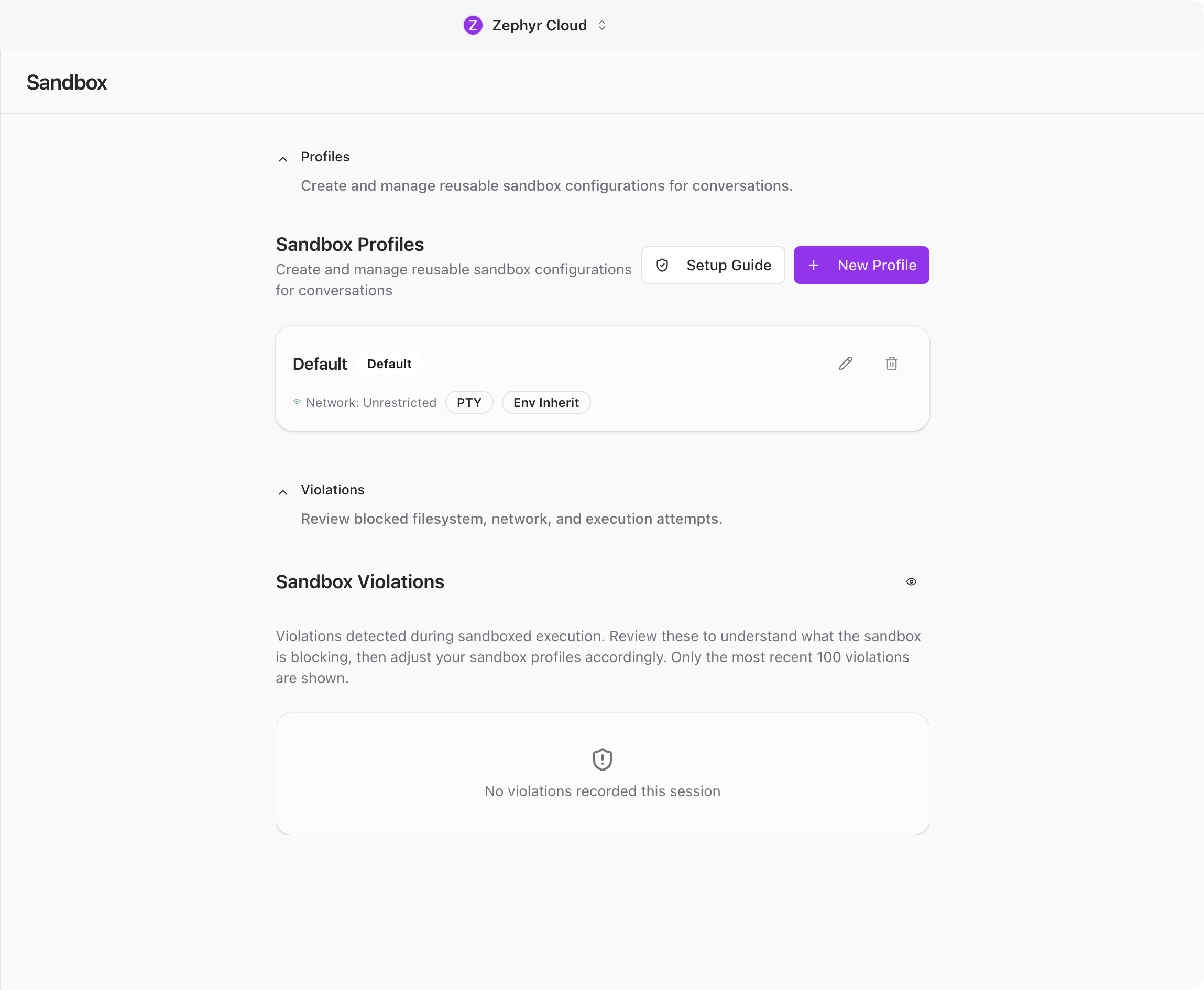
Sandbox
Sandbox settings control how specialists interact with your filesystem and network. They provide a security layer that limits what specialists can access during conversations.
You will find sandbox settings under Sandbox in the Settings sidebar.

Sandbox Profiles
The main section of the page shows a list of sandbox profiles. Each profile is a reusable set of rules that you can assign to projects or conversations.
Profiles let you tailor security boundaries for different kinds of work. A web development project might need network access, while a data analysis project might only need local file reads. Each profile defines:
- Network mode controls whether specialists can access the internet and which endpoints are allowed.
- File system access sets which directories specialists can read from and write to.
- Setup commands are commands that run when a sandbox environment starts up.
- PTY preferences configure terminal behavior for the sandbox.
- Git config handles git-related configuration for the sandbox environment.
You can create, edit, and delete profiles from this page.
Creating a Profile
Click the add button to open the profile form dialog. Give the profile a name and configure the rules you need.
Toggle network access on or off, specify allowed directories, and add any setup commands that should run when the environment starts. Click Save to add it to the list.
Once saved, the profile appears in your list and can be assigned to any project. See Projects for details on assigning a sandbox profile.
Editing and Deleting Profiles
Click on any profile in the list to open it for editing. Make your changes and click Save to update it.
To remove a profile, use the delete option. If the profile is currently assigned to a project, you will want to reassign a different profile first.
Onboarding Wizard
The first time you open Sandbox settings, an onboarding dialog walks you through the setup. If you skipped it before, you may also be prompted again. The wizard has five steps:
- Mental model explains what sandboxing does and why it matters.
- Scan checks your system to detect existing configurations.
- SSH configures SSH access rules for the sandbox.
- Custom paths lets you define additional allowed paths beyond the defaults.
- Review shows a summary of your configuration before saving.
This wizard helps you get a reasonable default configuration without needing to understand every option upfront. You can always adjust profiles manually afterward.
Violation Logs
Below the profiles section, a violations panel shows when specialists tried to access something outside their allowed permissions. Each violation entry includes:
- What was attempted, such as a file path or network endpoint.
- When it happened.
- Which conversation triggered it.
You can dismiss individual violations or click Clear all to remove everything at once.
Violation logs are useful for tuning your sandbox rules. If you see violations for legitimate actions, your rules might be too restrictive. If you see unexpected access attempts, your rules are doing their job.
Related
- Settings overview for a summary of all settings pages.
- Projects for assigning sandbox profiles to your projects.