
Task Manager
Tasks help you track work across the workspace. Use them for bugs, documentation updates, design review, launch prep, implementation steps, and follow-up items from chat.
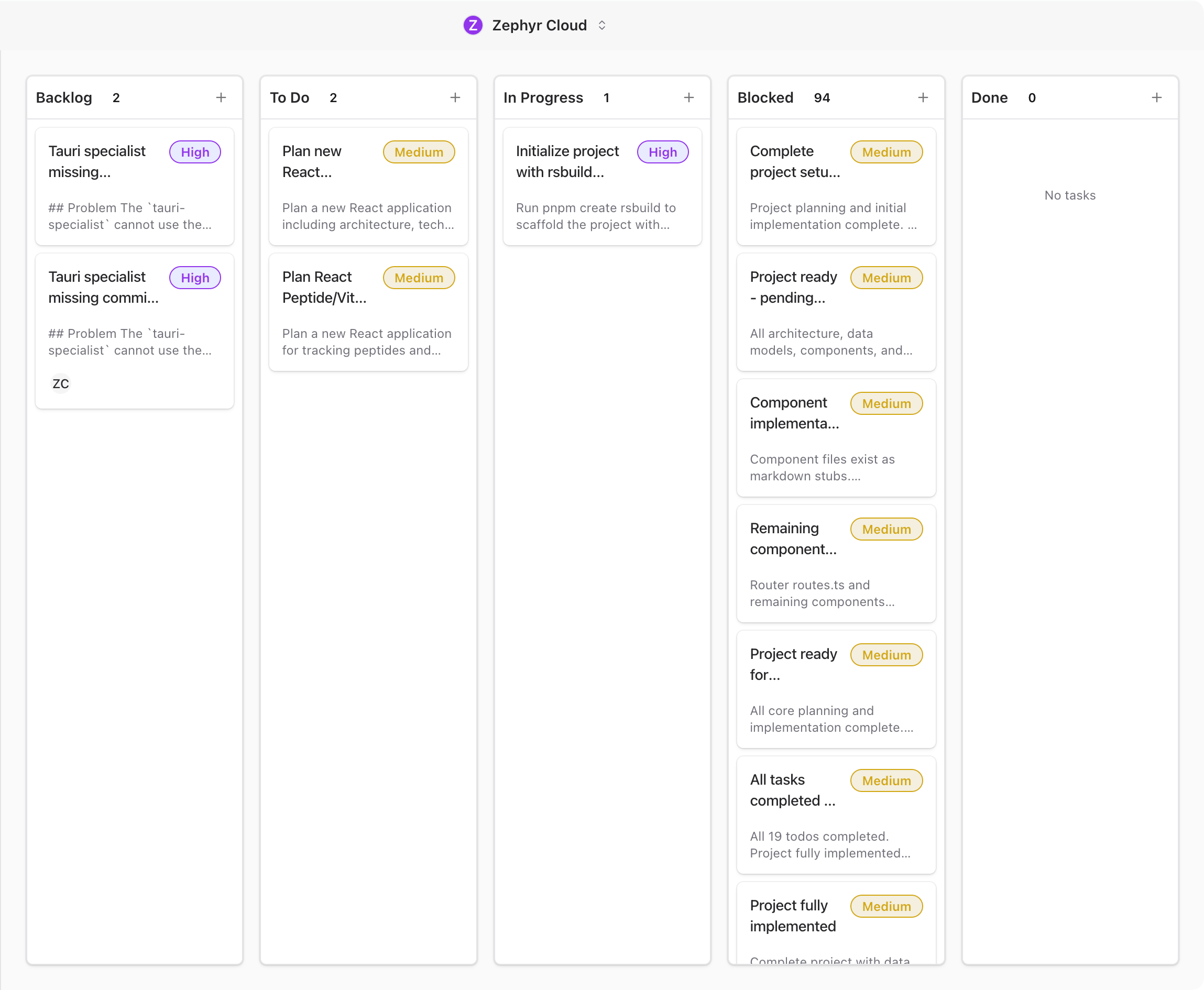
Board Layout
The task board is organized by status. Current columns include:
- Backlog
- To Do
- In Progress
- Blocked
- Done
Each column header shows the status name and task count. Use the + action in a column to create a task directly in that status.
Create a Task
Click a column + action to create a task. The task detail dialog opens with fields for title, status, priority, due date, project link, assignees, acceptance criteria, linked channels, description, and attachments.
Give the task a clear title and enough description that someone else can understand the expected outcome.
Read Task Cards
Task cards summarize the work without opening the detail dialog. A card can show:
- title
- priority
- description preview
- status column
- linked context when available
Click a task card to open its full details.
Move Work Across Statuses
Use the board to see where work stands. Move a task as the work changes state, or open the task detail dialog and change the Status field there.
Link Tasks to Context
Tasks become more useful when connected to other work:
- Link a task to a project when it belongs to a larger initiative.
- Link a task to a channel when discussion or specialist work is happening there.
- Add assignees when a person or specialist owns the next step.
- Add acceptance criteria when the done state needs to be explicit.
What to Explore Next
- Task Details. Edit a task and add context.
- Projects. Track project work and project tasks.
- Chat. Discuss tasks with teammates and specialists.