
Channel Details
Channel Details is where you manage the settings and participants for a channel. Open it from the channel header menu by choosing Channel details.
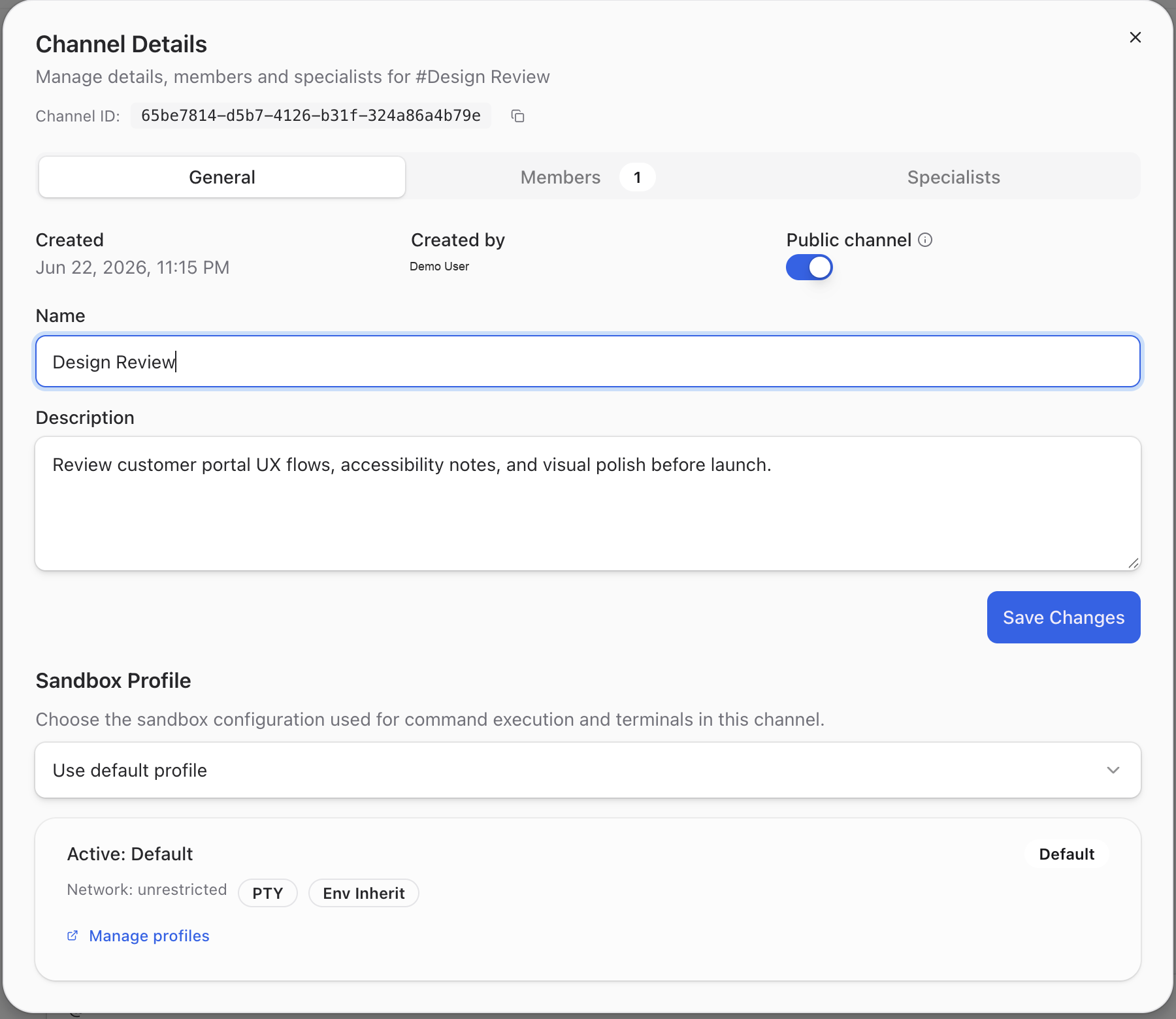
General
The General tab shows channel-level settings.
From here you can:
- Copy the Channel ID when support or debugging needs the exact channel identifier.
- Review when the channel was created and who created it.
- Rename the channel.
- Update the channel description.
- Switch the channel between public and private when your permissions allow it.
- Choose the sandbox profile used for command execution and terminals in this channel.
Click Save Changes after editing the name, description, visibility, or sandbox profile.
Members
The Members tab shows the people who belong to the channel.
Use this tab to understand who can see and participate in the conversation. If your workspace role allows channel management, you can add or remove people from here.
Specialists
The Specialists tab shows the AI specialists attached to the channel.
Use Default audience to choose how specialists can respond across the channel:
- Everyone allows specialists already in the channel to respond through mentions and routing.
- Humans only requires an explicit @mention.
- Specialists off prevents specialist responses, including explicit mentions.
- Chloe muted requires an explicit @mention for Chloe while other added specialists respond normally.
The setting is saved for the channel and applies to everyone. The transcript shows the active mode and records changes to it.
Add a specialist when you want that agent available for @mentions or routed specialist responses. Sending an exact @mention also adds a specialist that is not yet in the channel. Removing a specialist from a channel does not delete it from the workspace. It only removes that specialist from this conversation.
Sandbox Profile
The sandbox profile controls the environment used for command execution and terminals in this channel. Most channels can use the default profile. Change it only when a channel needs a different network, terminal, or environment policy.
What to Explore Next
- Channels Overview. The main chat layout guide.
- Messaging. Sending messages, attachments, mentions, and composer modes.
- Threads. Side conversations within a channel.