
Your First Channel
Channels are where you chat with specialists and teammates. This walkthrough covers the first chat flow: creating or opening a channel, starting a conversation, mentioning specialists, inviting teammates, attaching files, and switching between Everyone and Humans Only mode.
Create a Channel
Open Chat from the app rail. If your workspace has no channels, click Create Channel from the empty state. If channels already exist, use the + action in the Chat sidebar. A dialog appears where you set a channel name, an optional description, and whether the channel is public or private.
Give the channel a name that describes the topic and click Create Channel. Public channels are visible to everyone in the workspace. Private channels are invite-only. Channel names are required, so choose a real name now. You can rename the channel later from Channel details.
Start a Conversation
A new channel opens with an empty message area and the composer ready at the bottom.
You have a few ways to get going:
- Mention a specialist with @ to direct the message at a specific agent.
- Type a regular message when you only need the people in the channel to see it.
- Invite a teammate with @ when you want another person to join the channel.
Add People and Specialists with @
Type @ in the message input to open the mention picker. It shows the people in your workspace and lets you find specialists too.
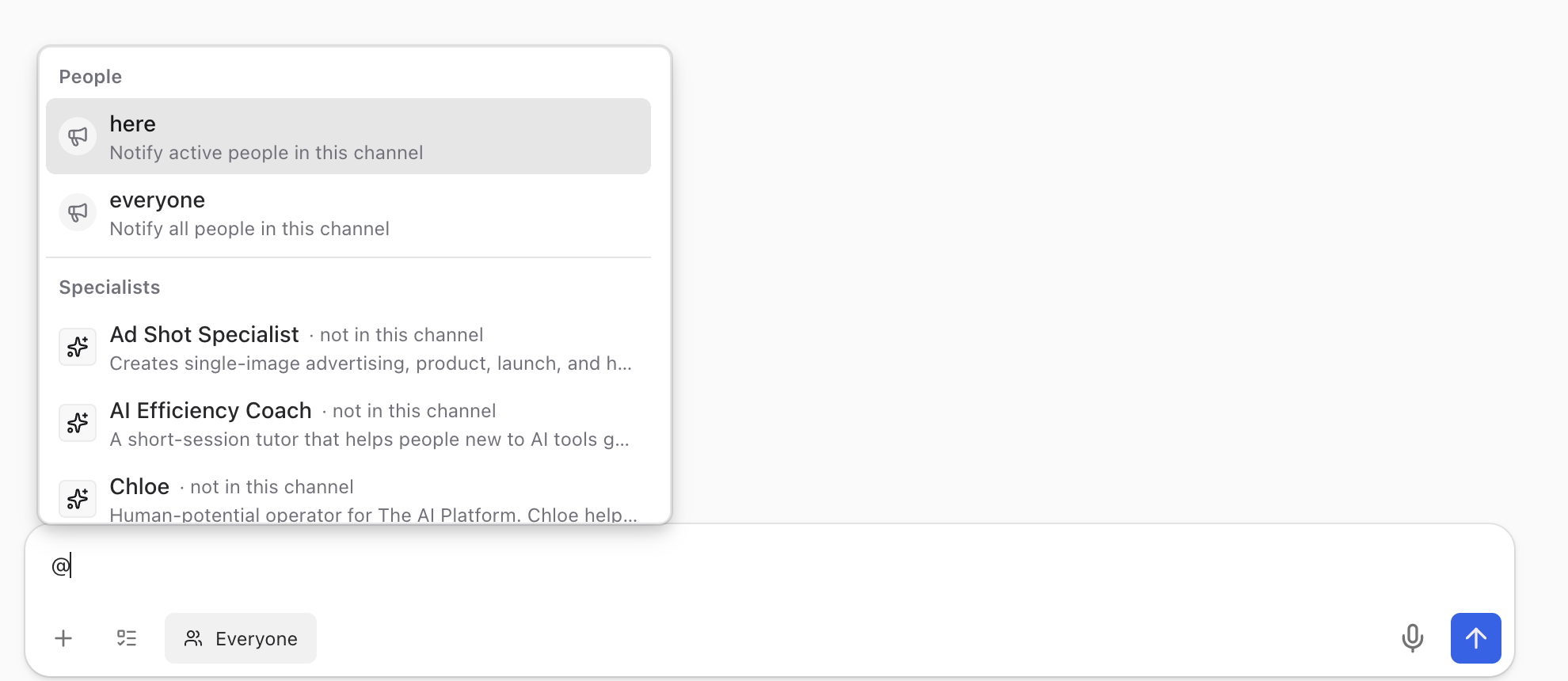
Keep typing to filter. For example, type welcome after the @ to find the Welcome Specialist for The AI Platform. The picker updates as you type and groups matches under Specialists, People, and Channels headings.
Click a result (or press Enter) to select it. The name appears as a mention chip in your message input, ready for you to add your question.
Send Your First Message
Type your question after the specialist mention. For example:
@Welcome Specialist for The AI Platform What can you help me with?
Press Enter to send.
If the specialist is not already in the channel, sending the exact @mention adds it and directs the message to it in one step. There is no separate confirmation dialog.
An unmentioned specialist that has not been added to the channel cannot respond. In Everyone mode, automatic routing only considers specialists already in the channel.
Confirm the Specialist Joined
After you add a specialist, open the channel header menu and choose Channel details. The Specialists tab lists the specialists currently in the channel.
Use Members to review the people in the channel. From the details dialog, workspace members with the right permissions can also manage channel participants.
Read the Response
The specialist streams its response into the channel in real time, just like a normal chat.
Specialist messages have their own avatar and name so you can tell them apart from messages sent by people. Responses can include rich formatting with headings, bullet points, and code blocks.
When a specialist uses tools like searching code, reading a file, or looking up a task, you will see a collapsible tool call section in the message. Click to expand and see exactly what the specialist did.
Hover over a specialist response to reveal message actions such as reacting, replying in a thread, copying text, or copying a link. Available actions depend on your permissions and the message state.
Bring in Teammates
You can invite any person in your workspace into a channel by mentioning them with @ the same way you mention specialists.
Type @ followed by part of their name, pick them from the picker, and they get a notification when you send the message. If the person is not yet a channel member, they will be added when you @-mention them.
Multiple people and specialists can work in the same channel. A planning conversation might have a product manager, a designer, and a specialist all responding together.
Talk to people only
Sometimes you want the whole channel to default to human conversation. Open Channel details, select Specialists, and choose Humans only under Default audience. This setting is saved for the channel and applies to everyone who uses it.
The transcript shows Humans only enabled when that shared default is active. Only a specialist you explicitly @mention can respond. Sending that mention also adds the specialist when it is not already in the channel.
You can also click the Everyone pill in the composer to switch your personal mode to Humans Only without changing the channel setting. This choice follows you to every channel and thread.
Click the pill again to return your personal mode to Everyone. If the channel itself is set to Humans only or Specialists off, the composer cannot widen that shared policy.
This is useful for quick team discussions, decisions that do not need an AI response, or moments when you want to think out loud with your colleagues first.
Specialists speak your language
Specialists automatically reply in whatever language you write in. Type your question in Spanish, French, Japanese, or any other supported language, and the specialist responds in the same language.
You do not need to configure anything or pick a language. Switch languages mid-conversation if you need to. The specialist keeps up.
Attach Files
Click the + button at the bottom of the composer to attach files or images.

You can also paste images from your clipboard or drag files directly into the chat. Specialists can read and respond to attached files when they are part of the conversation.
Message Actions
Hover over any message and a small action bar appears in the top-right corner with quick options like reacting with an emoji and replying in a thread. Click the three-dot menu in the action bar to open the full actions menu.
The menu includes:
- Edit message to fix typos or update what you wrote.
- Copy link to share a direct link to the message with anyone in the workspace.
- Reply in thread to start a focused side conversation. See Threads for more.
- Delete message to remove it from the channel.
Open Links Without Leaving the App
When a specialist sends a link, or you click a URL in any message, the app shows a small "Open external link?" confirmation dialog before navigating. Confirm and the link opens in the embedded browser panel next to your chat, so you do not lose your place in the conversation.
What to Explore Next
- Browse Specialists to discover more specialists from the marketplace.
- Threads for branching off a specialist response into a focused side conversation.
- Projects to connect a code repository and give specialists your codebase as context.
You can have multiple channels open in tabs across your workspace, each with different specialists and topics. Use the sidebar to switch between them.