
Model Overrides
A specialist can have preferred models, but your workspace or personal settings may need a different model for cost, latency, availability, privacy, or quality reasons.
Model overrides let you choose a different model without rebuilding the specialist.
When to Use Overrides
Use model overrides when you want to:
- standardize a workspace on a preferred provider
- reduce cost for routine tasks
- use a stronger model for complex work
- test a specialist with different models
- avoid a provider that is unavailable in your workspace
Selection Order
When a specialist responds, The AI Platform chooses a model from the available configuration. The exact routing can depend on provider setup and workspace policy, but the general precedence is:
- personal override for the specialist
- workspace or organization override for the specialist
- personal default model (Settings → Connections)
- workspace default model (Settings → Connections)
- specialist preference
- system fallback
If an administrator enforces the workspace default model, that model replaces the whole list.
The Model Overrides section on a specialist's page shows the Expected model for that specialist in the current workspace and which authority chose it — for example via the workspace default or via your override for this specialist. Hover the model to see the fallbacks in order. Each reply in a conversation carries the same information next to its model name.
If a selected provider is not connected or allowed, The AI Platform may require you to connect it or choose another model.
Where Overrides Appear
Model configuration can appear on specialist detail pages, review screens, or response metadata depending on the specialist type and your permissions.
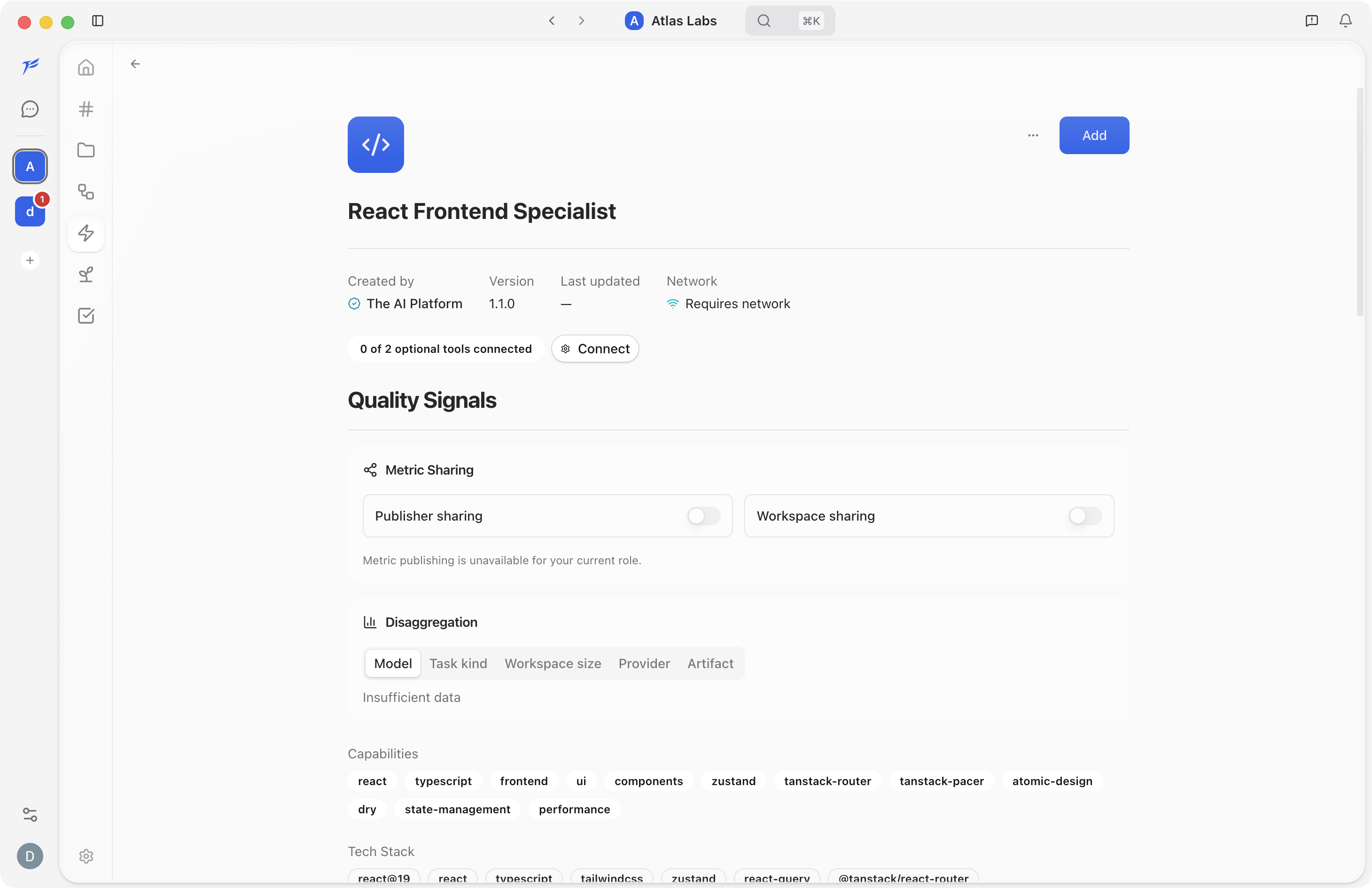
Open a specialist detail page to review its setup, capabilities, and available model-related information.
Good Override Practices
- Prefer workspace defaults for broad policy.
- Use personal overrides for experimentation.
- Clear overrides when testing is complete.
- Choose cheaper models only after checking quality on representative tasks.
- Use stronger models for complex reasoning, code review, architecture, or high-risk work.
Next Steps
- Specialists Overview
- Working with Specialists
- Connections for adding model providers