MCP Servers

MCP (Model Context Protocol) servers extend what specialists can do by providing additional tools, resources, and context. For example, an MCP server might give specialists access to your database schema, a specific API, or custom business logic.

You will find this page under MCP Servers in the Settings sidebar.

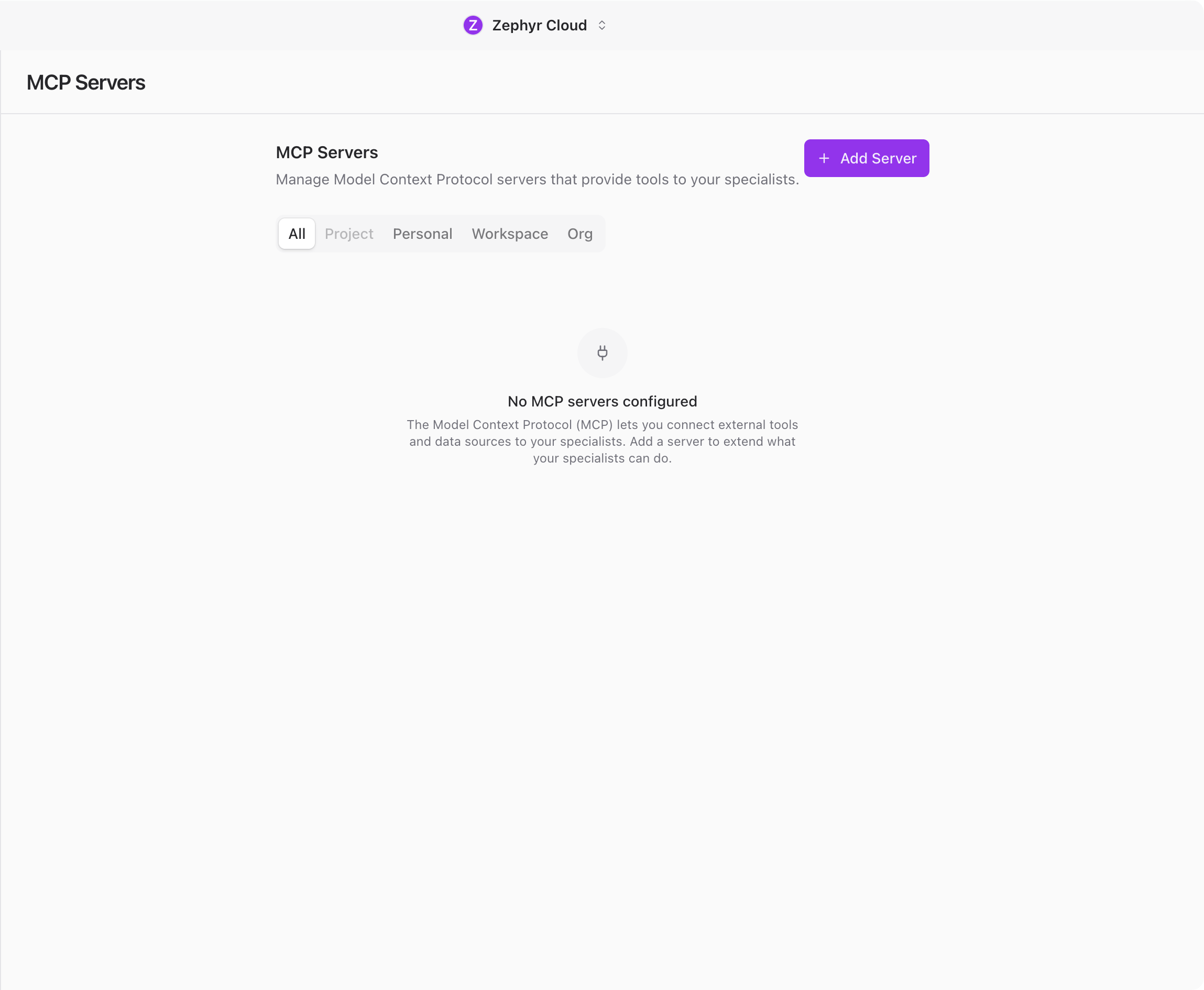
MCP Servers settings with scope filters and server list

Layout

The page shows a header with the title and an Add Server button. Below that, a row of scope filter tabs lets you narrow the list. The server list fills the rest of the page.

Scope Filters

Tabs at the top filter the server list by scope:

  • All shows every configured server.
  • Project shows servers scoped to the current project. This tab is disabled when no project is open.
  • Personal shows servers only available to you.
  • Workspace shows servers available to everyone in the workspace.
  • Org shows organization-wide servers.

Scopes

Each MCP server belongs to a scope that controls who can use it:

  • Personal servers are private to your account.
  • Workspace servers are shared with everyone in the workspace.
  • Project servers are tied to a specific project and only visible when that project is open.
  • Org servers are available across the entire organization.

Scope Overrides

When a project-scoped server has the same ID as a workspace-scoped server, the project entry takes priority. The UI shows labels to make this clear: "Overrides workspace entry" on the project server and "Overridden by project" on the workspace server.

This lets you customize server behavior per project without changing the workspace-wide configuration.

Adding a Server

Click Add Server to open the configuration dialog. Fill in the server details and save. The new server appears in the list immediately.

Editing a Server

Click any server in the list to open the edit dialog. Make your changes and save. The server list refreshes automatically to reflect the update.