
Knowledge Garden
Knowledge Garden is where you collect reference material for The AI Platform. Use it for product briefs, API notes, support feedback, design research, documentation, code references, and other context that specialists should be able to use later.
A collection in Knowledge Garden is called a Knowledge Plot.
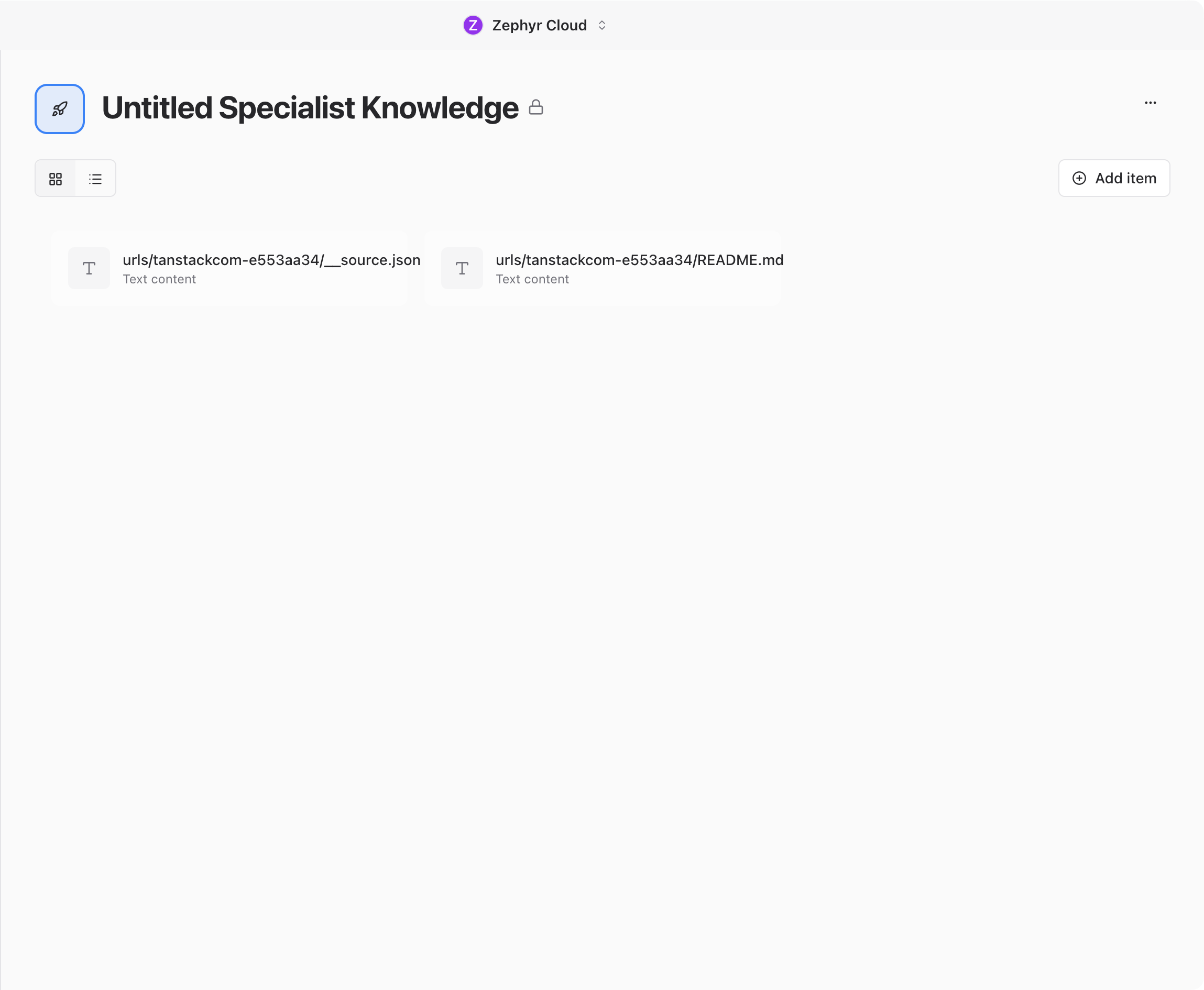
Empty State
A new workspace starts with no plots. The Knowledge page prompts you to Create Plot so you can add your first collection of reference material.
Create a plot when you have material that should stay available beyond a single chat message or project conversation.
Create a Plot
Click Create Plot to open the plot creation dialog.
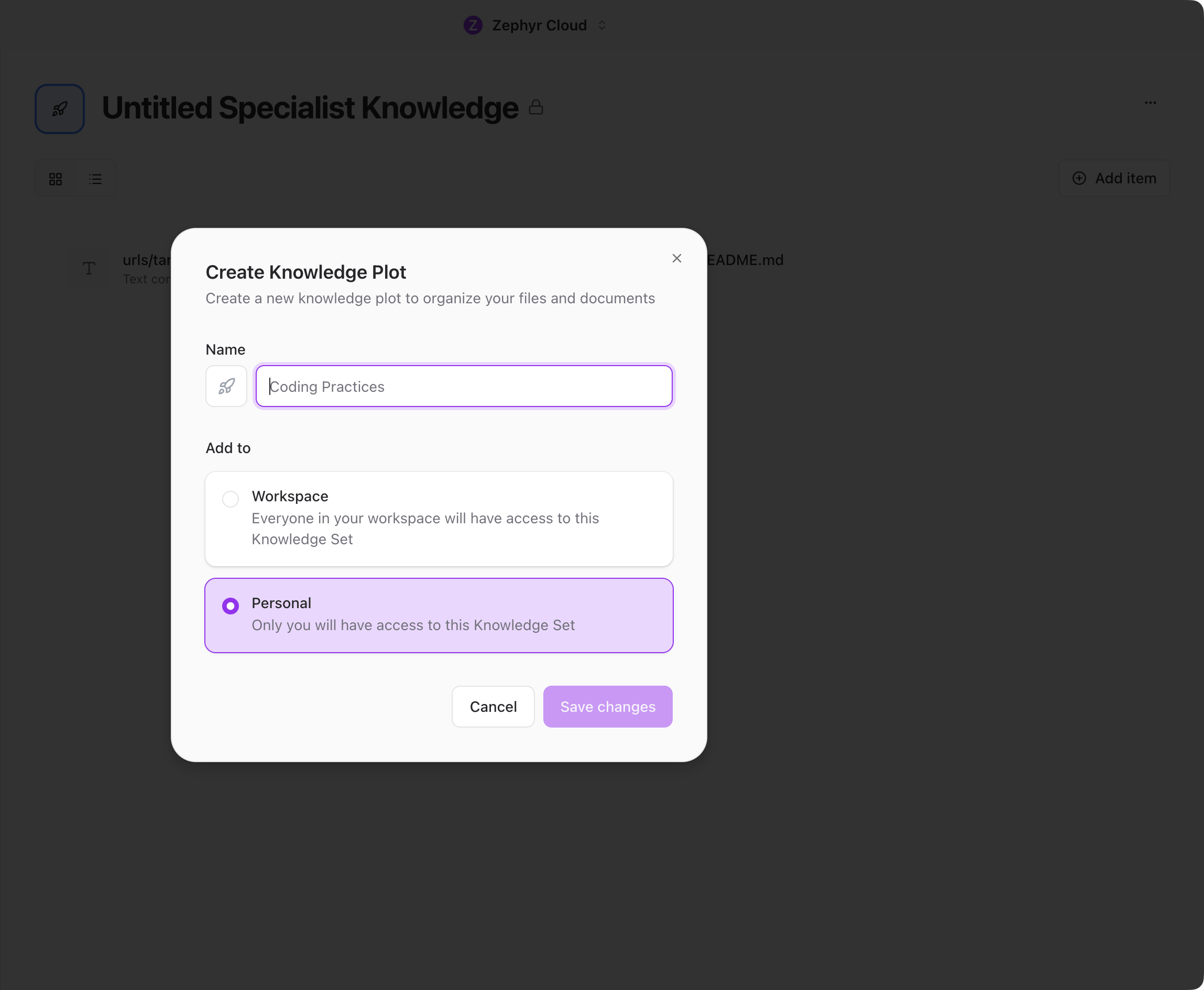
The dialog includes:
- Name. Give the plot a clear name, such as Customer Portal Brief or Support Feedback.
- Workspace. Everyone in the workspace can access the plot.
- Personal. Only you can access the plot.
Click Create plot to save it.
Workspace vs Personal Plots
Use Workspace plots for shared reference material that teammates and specialists should use across projects or channels.
Use Personal plots for private notes, drafts, or material you are still organizing.
How Knowledge Helps Specialists and Projects
Knowledge plots give specialists durable context. Instead of pasting the same background material into every conversation, add it to a plot and connect it where it is needed.
Projects can also use knowledge as part of their context. For project-specific knowledge, see Project Knowledge Sources.
Use clear names. A plot called Customer Portal Brief is easier to find and reuse than a generic name like Docs.
What to Explore Next
- Plots & Files. Learn how content is added and managed after a plot exists.
- Projects. Connect knowledge to larger initiatives.
- Specialists. Understand how specialists use context.