
Embedded Browser
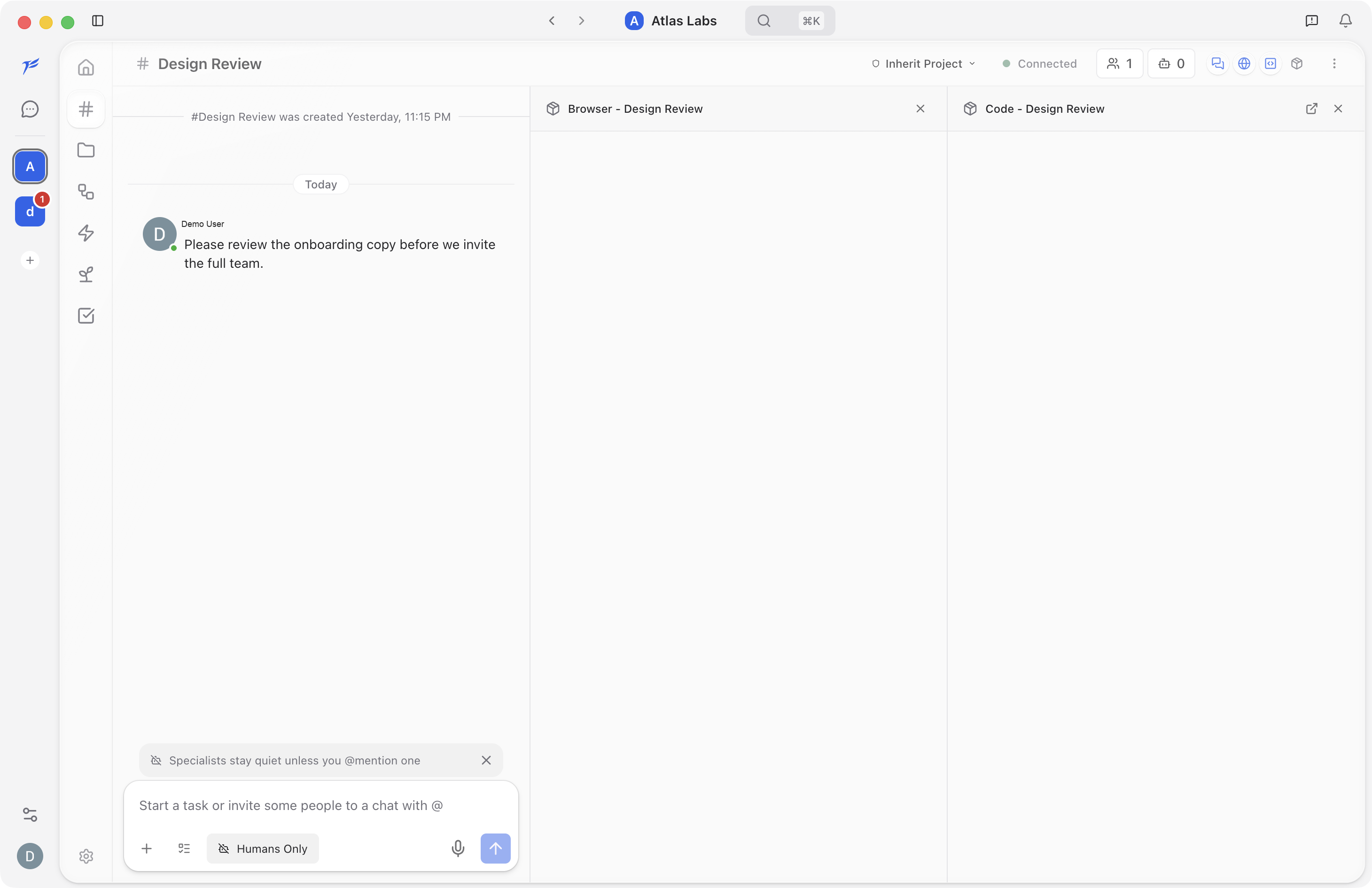
The embedded browser opens beside the active chat so you can view a web page without leaving The AI Platform. It is most useful in project conversations where a specialist is helping you build, review, or debug a web app.
When to Use It
Use the Browser panel when you want to:
- Open a localhost preview or public web page next to your chat.
- Keep reference material visible while you talk with teammates or specialists.
- Review a UI while a specialist edits or explains related code.
- Work with the Code panel during a build-test-fix loop.
Open the Browser
Open a channel and click the Browser panel button in the channel header. The panel opens beside the chat. Click the button again, or use the panel close control, to hide it.
If you click a web link in a message, The AI Platform asks before opening it. After you confirm, the link opens in the Browser panel instead of taking you out of the app.
Browser Toolbar
The Browser panel includes standard browser controls such as back, forward, reload, home, and a URL bar. Type a URL or search query into the URL bar and press Enter.
When a project or dev-server context is available, the Browser can also support element selection workflows. Those workflows depend on the page, source maps, and project setup, so they are covered as part of the project development loop rather than the basic chat onboarding flow.
Work with Code
The Browser panel pairs with the Code Editor. In project chats, this lets you inspect the running UI and source files side by side.
A typical loop looks like this:
- Open a project channel.
- Ask a specialist to build or change a UI.
- Open the Browser panel to preview the result.
- Open the Code panel to review files or diffs.
- Give follow-up feedback in chat.
Link Safety
When you click an external http or https link in chat, The AI Platform shows a confirmation before opening it. Use this moment to check the URL.
Depending on the link, the confirmation can let you open the URL in the embedded Browser panel or copy the link. Links that are not safe to open are not treated as normal web links.
Standalone Mode
The Browser panel normally opens beside the chat. On smaller windows, or when you need more room, the app can use a standalone panel or window layout. The exact layout depends on your window size and current panels.
Browser Extensions
Ask a specialist to install a Chrome Web Store extension by its 32-character extension ID. The extension loads immediately in supported desktop builds and belongs to the active browser profile.
The Browser toolbar shows installed extensions. Use it to open an extension popup, pin or unpin an extension, enable or disable it, uninstall it, or open Chromium's extension manager.
Related
- Code Editor. The editor panel that pairs with the Browser.
- Projects. Connect repositories and local folders for project-aware browser/code workflows.
- Channels Overview. The broader chat layout, including panel controls.