
Search
Press Cmd+K on macOS or Ctrl+K on Windows/Linux to open the command palette. Use it to move around The AI Platform without scrolling through sidebars.
Open Search
Press Cmd+K on macOS or Ctrl+K on Windows/Linux to open the search dialog. Press the same shortcut again or Escape to close it.
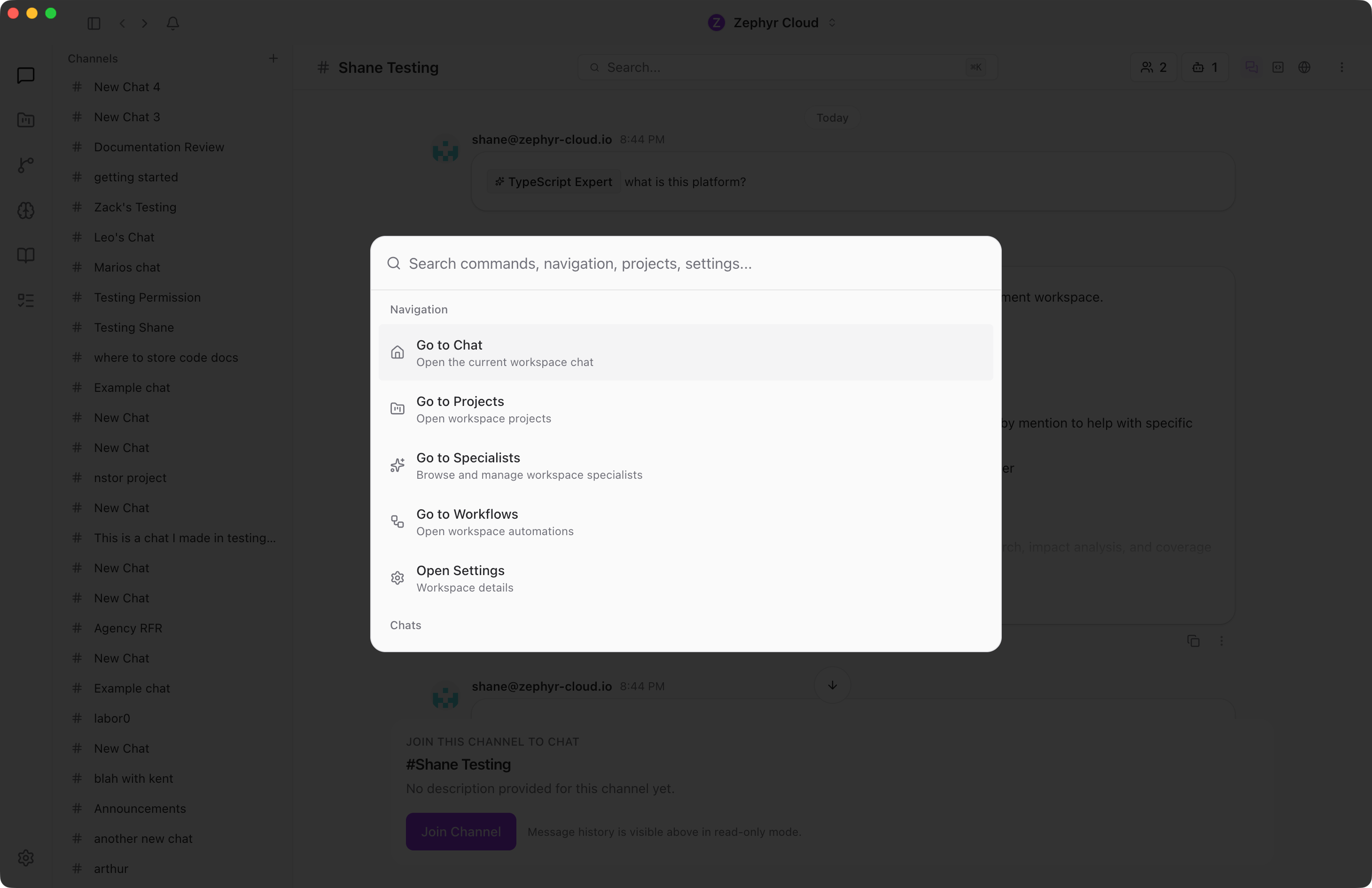
What You Can Search
Results are grouped by what the current workspace can navigate to.
Common result groups include:
- Navigation for jumping to Home, Chat, Projects, Specialists, Workflows, and Settings.
- Chats for channel and direct-message conversations.
- People for workspace members you can message.
- Settings and actions when matching commands are available.
Search for a Conversation or Surface
Type in the search field and results filter in real time. You can search for a channel name, a person, a major app surface, or a command such as opening settings.
Search is the fastest way to switch between major surfaces. Build the habit of pressing Cmd+K or Ctrl+K instead of hunting through the rails.
Select a Result
Click a result or use the arrow keys to navigate and Enter to select. The dialog closes and navigates to the selected destination.
If you select a person and no direct message exists yet, The AI Platform can open or create the DM for you.
Limitations
Search is for navigation and workspace actions. It is not a full message-content search across every conversation, file, or task.
Next Steps
- Chat Overview for navigating conversations
- Your First Channel if you are just getting started