Personal and Preferences

The Account group in Settings has two sections: Personal and Preferences. These settings apply to your account and follow you across workspaces.

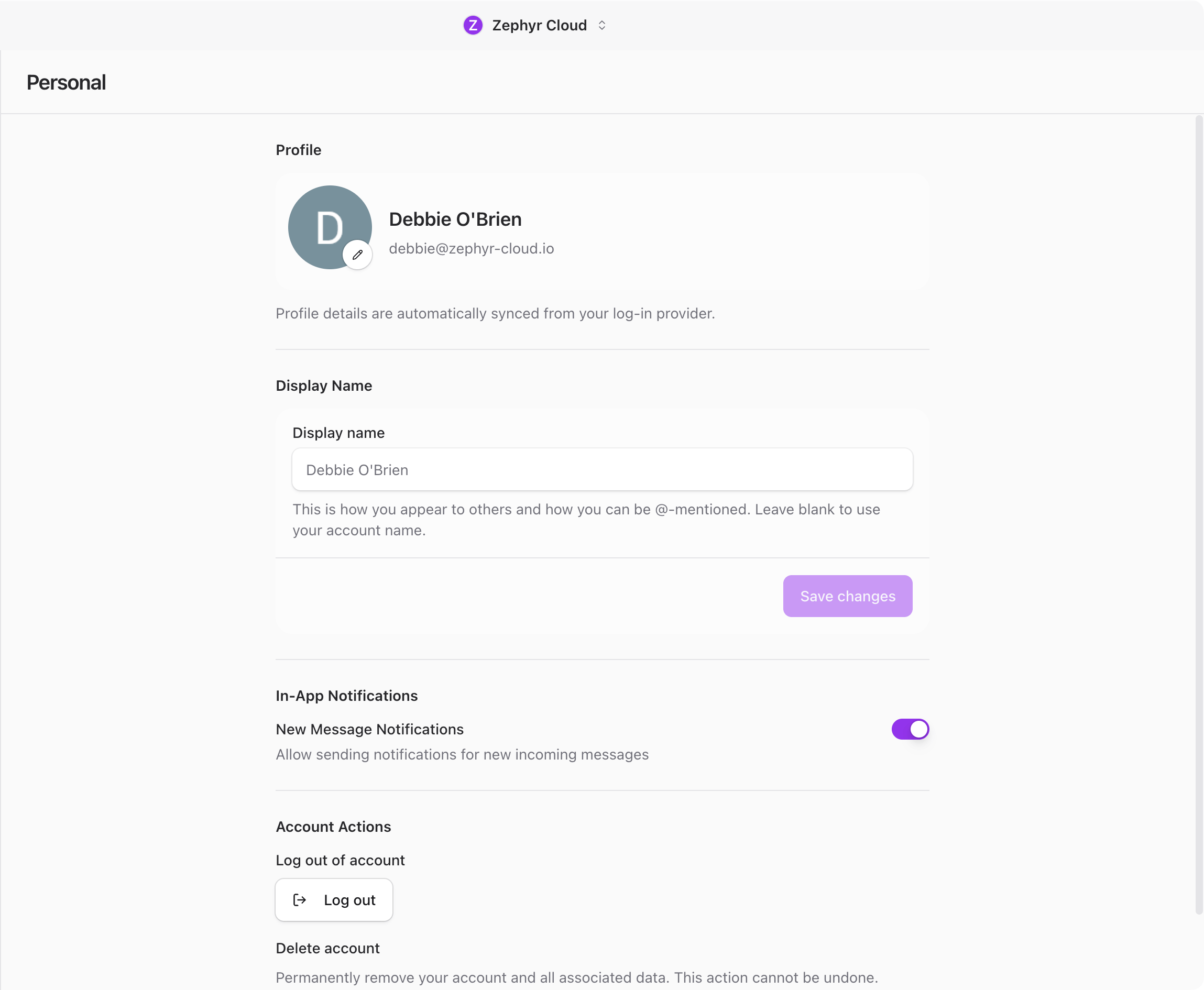
Personal settings showing profile and preferences

Profile

At the top of the Personal section, a profile card shows your avatar, display name, and email address. Your profile details sync automatically from your login provider.

Click the avatar to upload a custom image or change it. If you do not upload one, the app uses your login provider picture or shows your initials.

Display Name

Below the profile card, a text field lets you set a custom display name. This is how you appear to others in the workspace and how you can be @-mentioned in conversations.

The name can be up to 64 characters. Leave it blank to use your account name from the login provider. Click Save changes to apply.

In-App Notifications

A toggle controls whether new message notifications play a sound. Turn it off if you prefer silent notifications.

Account Actions

Two actions are available at the bottom of the Personal section:

  • Log out signs you out of your account. If you have multiple accounts, you return to the next available one.
  • Delete account permanently removes your account and all associated data. This feature is not available yet.

Appearance

The Preferences section starts with appearance settings.

Theme lets you pick between three options: Light, Dark, and System. Each option is shown as a visual card with an icon. System follows your operating system setting.

UI scale adjusts the base font size with a slider. Drag it to make everything larger or smaller. Click Restore default to reset to the standard size.

Language

Set your preferred language from a dropdown with 15 supported languages. A separate dropdown sets your region for date and number formatting.

Auto-translate messages toggles automatic translation of incoming messages into your preferred language. When enabled, you can also turn on Show both original and translation to see messages in both languages side by side.

Translation model lets you pick which AI model handles translations. Options include Claude Sonnet 4.5 (recommended), GPT-5.4, GPT-5 Mini, and Gemini 2.5 Flash.

Notifications

Three toggles control how you receive notifications:

  • OS notifications sends native desktop or mobile notifications for new messages.
  • Email notifications sends email alerts for messages you missed.
  • Message sounds plays audio for new messages. When enabled, four test buttons appear: Test notification, Test error, Test success, and Test all. Use these to preview each sound.

Release Channel

A dropdown lets you pick your update channel: Stable, Beta, Development, or Nightly. Stable is the default and recommended for most users. Beta and Development channels receive features earlier but may be less stable.

This setting is only visible in the desktop app when the updater is available. You will not see it on mobile or in the web version.