
Task Details
Click any task card to open the task detail dialog. This is where you add the context that makes a task actionable.
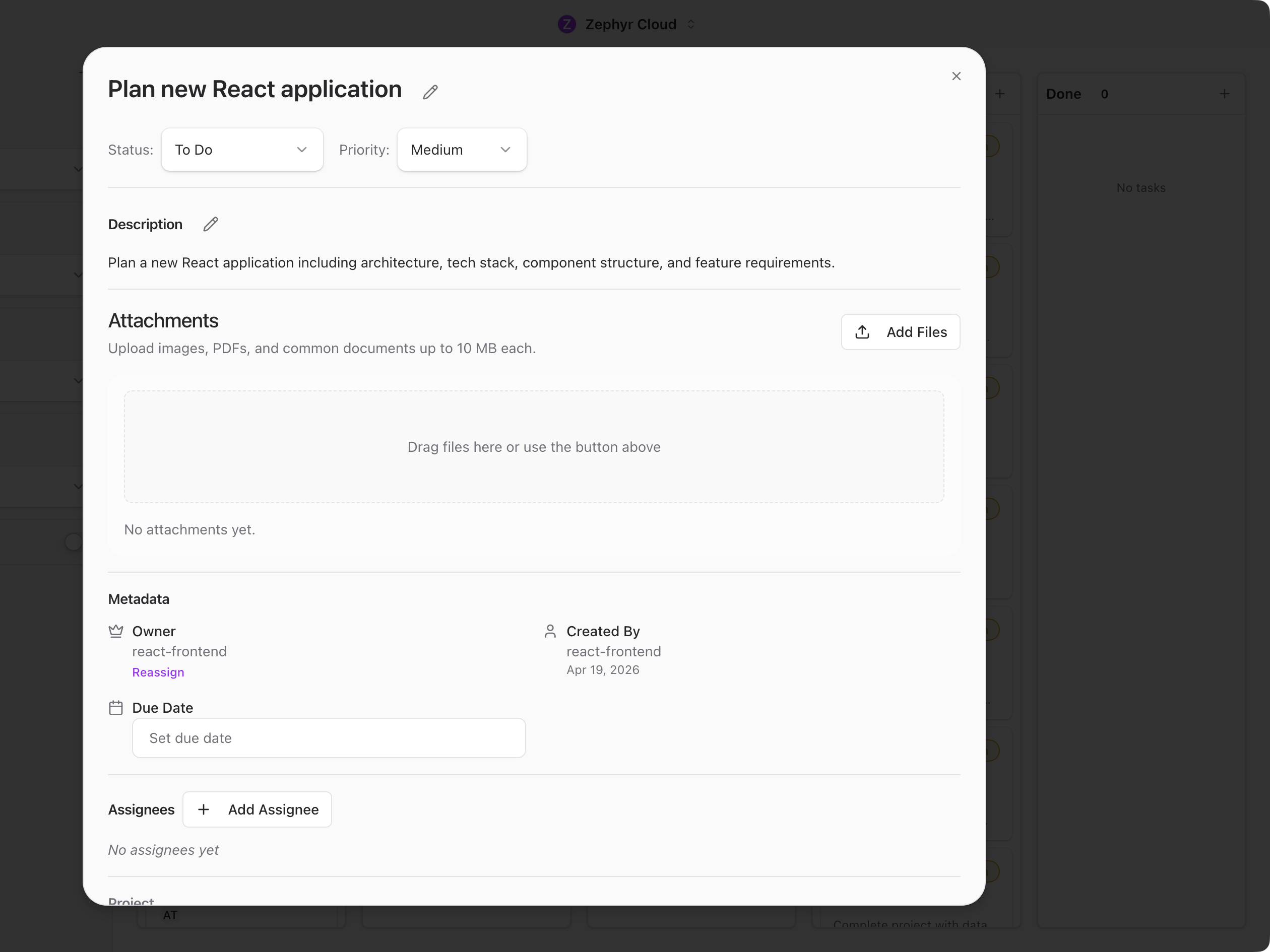
Title, Status, and Priority
Use the title to make the task easy to understand from the board. The Status field controls which board column the task belongs to. The Priority field helps teammates understand urgency.
Due Date
Use Set due date when the task has a deadline or review date.
Project Link
Use Link Project when the task belongs to a larger initiative such as Customer Portal Refresh. Project links help keep task work close to project context.
Assignees
Use Add Assignee to give ownership to a person or specialist. A task can start unassigned, but assigning it makes the next step clearer.
Acceptance Criteria
Use Add Criterion to define what must be true before the task is complete. Good criteria are specific and checkable.
Linked Channels
Use Link Channel when the discussion for a task happens in a chat channel. This gives people and specialists a path back to the conversation.
Description
Use the description for the details that do not fit in the title. Include background, expected outcome, constraints, and links to related context.
Attachments
Use Add Files or drag files into the attachment area when the task needs screenshots, documents, PDFs, or other reference files.
What to Explore Next
- Task Manager. Return to the board.
- Projects. Link tasks to project work.
- Chat. Discuss tasks in channels.