
Sign In & Set Up
The AI Platform uses OAuth for authentication, so there is no separate sign-up step inside the app. The first time you open it, you log in through your identity provider. That single flow handles both new accounts and returning users. After that, you create a workspace and you are ready to go.
Sign In with OAuth
When you launch the app for the first time, you land on the login screen.
Click Log in with OAuth to open your identity provider in your browser. Sign in (or sign up) there and you will be redirected back to the app automatically. If your account is brand new, the OAuth provider will walk you through creating it before bringing you back.
If your organization supports it, you can also scan the QR code on the login screen with your mobile device to authenticate through The AI Platform mobile app.
You only need to sign in once. The AI Platform keeps you logged in across sessions.
Create a Workspace
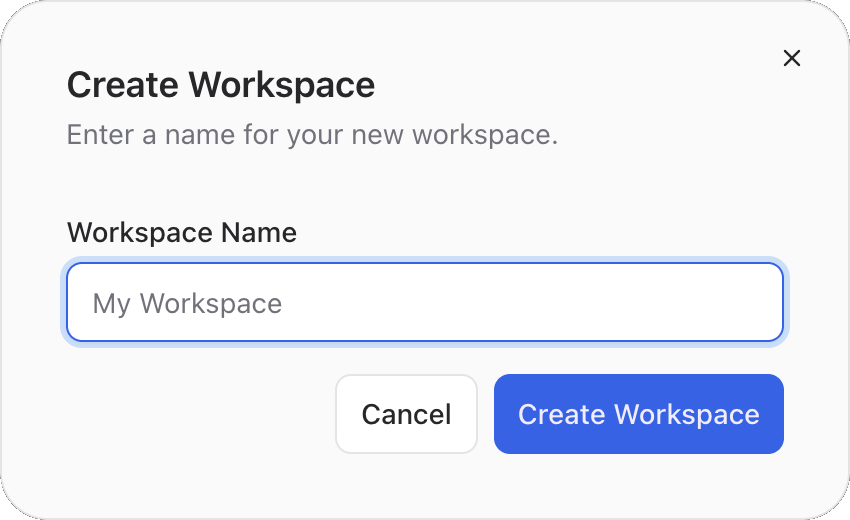
After signing in for the first time, you will see a Create your first workspace screen. A workspace is a shared space where your team collaborates, similar to a team chat workspace. All your channels, projects, specialists, and settings live inside a workspace.
Click Create Workspace, enter a name, and confirm. The app creates the workspace and drops you into it right away.
A fresh workspace starts empty, so your first step will be connecting an LLM provider and adding some specialists.
Join an Existing Workspace
If a teammate has already created a workspace, they can invite you. After signing in, you will see the workspaces you have been invited to. Click one to enter it.
You can belong to multiple workspaces and switch between them at any time using the workspace menu in the app header.
Invite Your Team
Once your workspace is set up, you can invite others from the workspace settings. Open Settings from the app rail, then go to Members. From there you can send invitations by email.
Team members who accept the invite will see the workspace after they sign in.
Next Steps
With your workspace ready, you need two things before you can chat:
- Connect an LLM provider so specialists can respond. Head to Connections to add an API key, or use The AI Platform Built In if you have an active plan for The AI Platform.
- Create your first channel and chat with a specialist. Head to Your First Channel. The natural flow walks you through everything, including adding a specialist on the first mention.