Platform Tour
The AI Platform is a multi-agent workspace where your team collaborates with AI specialists in channels. Specialists carry defined roles, knowledge, tools, and benchmark history. You chat with them the same way you chat with teammates.
This page is a tour of the main app surfaces. If you want to start using the app right away, head to Installation and come back here once you are signed in.
Workspace Navigation
The left side of the app has two rails. The workspace rail is the far-left column. Use it to switch workspaces, open Chloe, and reach workspace-level actions.
The app rail sits next to it. Use it to open Chat, Projects, Workflows, Specialists, Knowledge Garden, Tasks, and Settings.
When you open a section, the area to the right becomes that section's sidebar. In Chat, it shows channels and direct messages. In Projects, Specialists, Workflows, and Settings, it shows the navigation for that section.
Specialists
Specialists are AI agents that carry a defined role, preferred models, a knowledge base, tool permissions, and benchmark history. When you ask a specialist to review code, it already has the context, tools, and instructions to do that job well.
Browse the marketplace to find pre-built specialists and add them to your workspace. Specialist cards show who published the specialist, what it is for, and whether optional tools need to be connected.
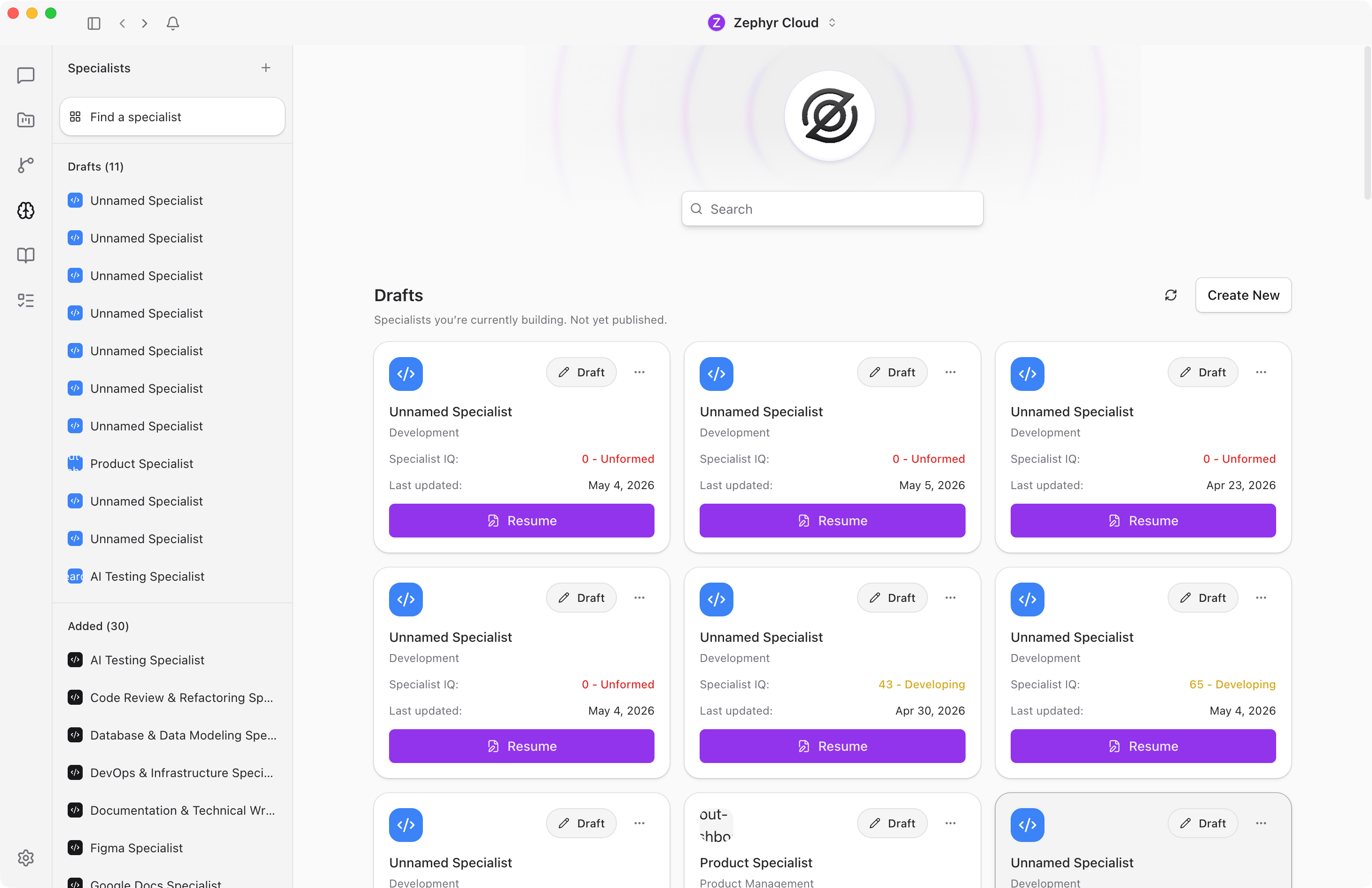
The specialist detail page shows setup requirements, capabilities, quality signals, knowledge sources, and workflows. When you are ready to customize your own specialist, use the builder to define its persona, tasks, knowledge sources, tools, and benchmarks.
Mention a specialist with @ in a channel when you want that agent to respond. Plain messages do not choose a specialist by content, so use an @-mention when you want an AI response. See the Specialists guide for details.
Model Routing
The AI Platform is provider-agnostic and model-agnostic. You can connect multiple LLM providers at the same time: OpenRouter, OpenAI, Anthropic, Amazon Bedrock, Cloudflare Workers AI, Hugging Face, or The AI Platform Built In.
The platform picks the right model based on provider settings, workspace defaults, personal defaults, and specialist configuration. You can set a workspace-wide default model, and individual team members can set a personal override. Specialists can also have their own preferred models.
The AI Platform Built In
A paid plan for The AI Platform includes The AI Platform Built In. It requires no API key and no external account. If your workspace has an active plan, the provider is available immediately.
If your workspace does not have an active plan for The AI Platform, connect any of the other providers with your own API key. See Connections for setup instructions.
Chat
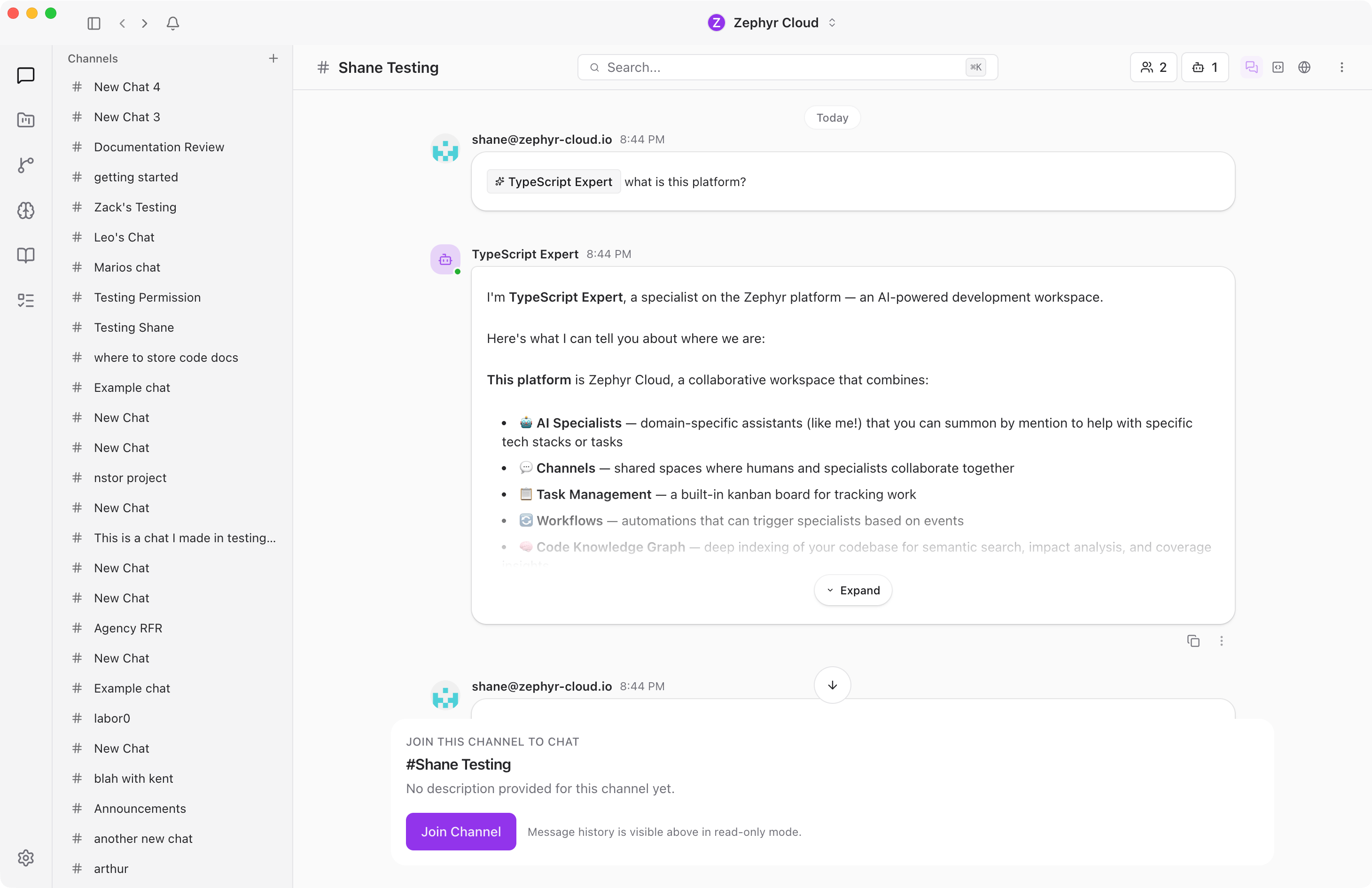
Conversations work like modern messaging apps. A new channel starts with an empty message area and a composer where you can write a message, attach files, invite people, or mention specialists with @.
Messages support rich formatting, file attachments, and emoji reactions. Hover over any message to react, reply in a thread, copy text, or copy a link.
Threads let you branch off from a message for focused discussion without cluttering the main channel.
Tool calls are visible in the chat. When a specialist uses a tool (searching code, reading a file, querying a database), you see what it did and can click to expand the details.
Search lets you jump to any conversation or person. Press Cmd+K (macOS) or Ctrl+K (Windows/Linux) to open it.
Projects
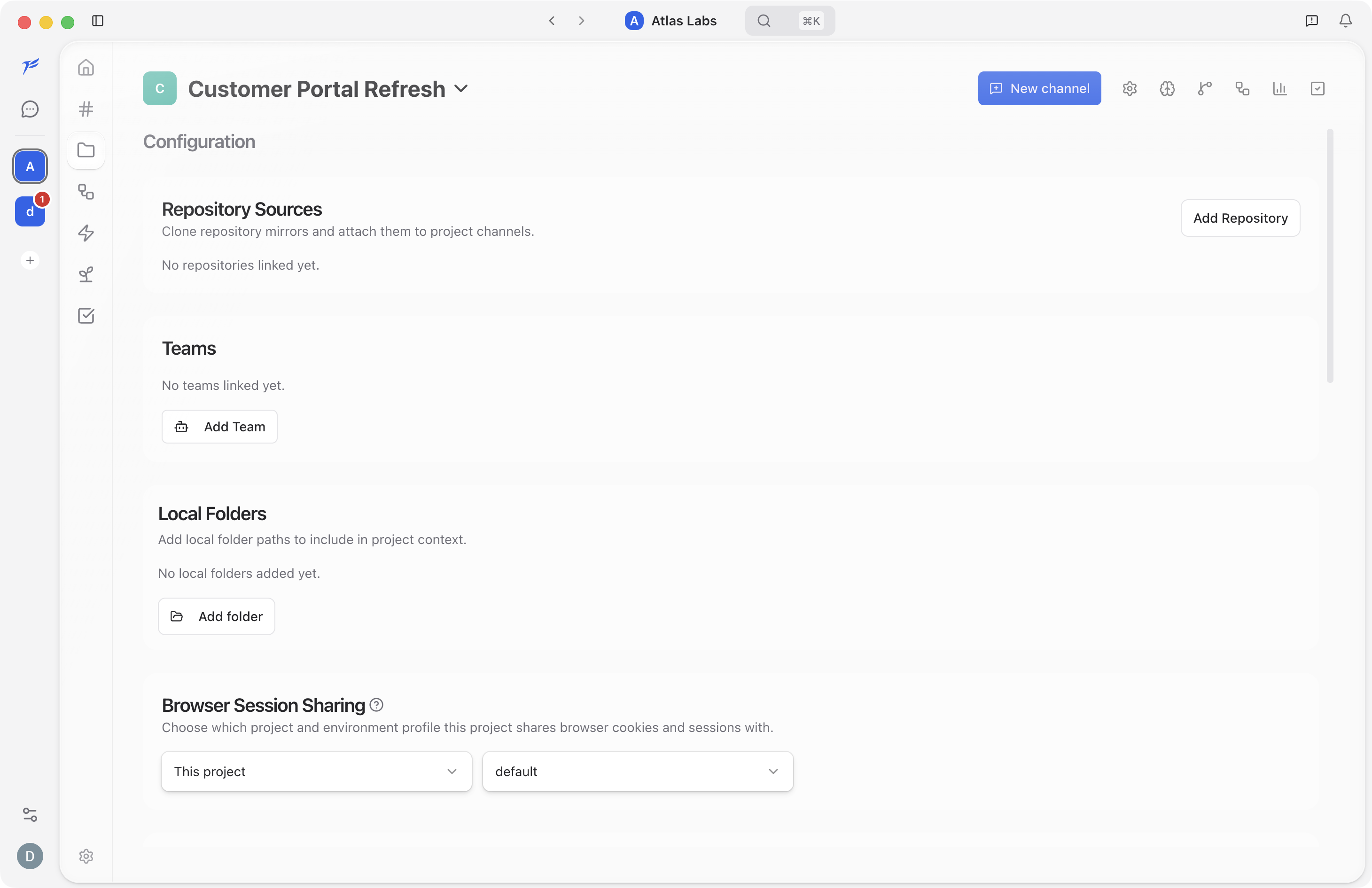
Projects bring together everything related to a piece of work: context for channels, tasks, workflows, repositories, and knowledge sources.
In Atlas Labs, Customer Portal Refresh is a sample project that groups related channels, tasks, workflows, and context around a larger initiative. Select a project from the sidebar to open its configuration page.
See the Projects guide to learn more.
Workflows
Workflows let you build visual automations. Open the workflow editor, add nodes from the palette, connect them on the canvas, then save and execute the workflow.
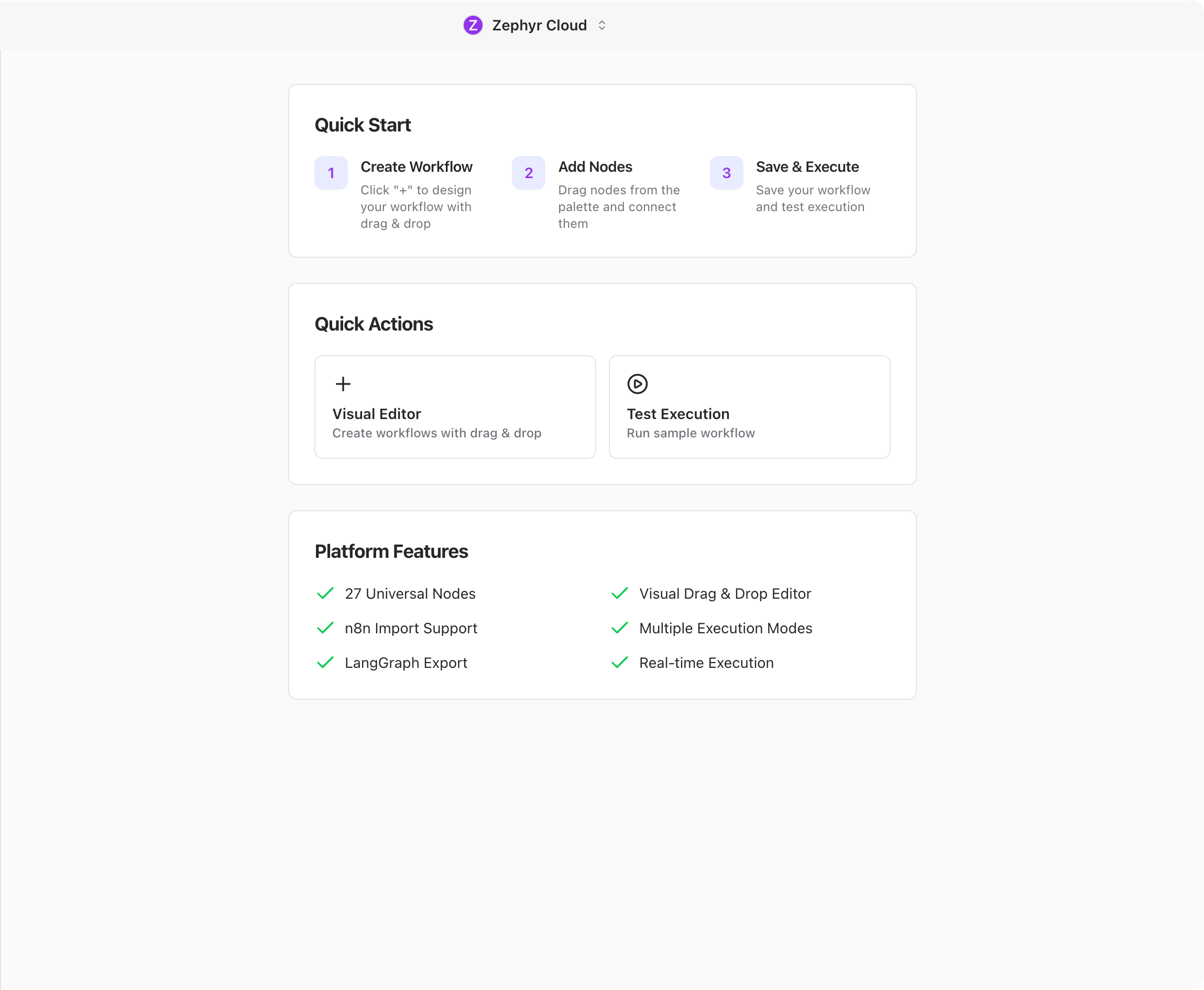
See the Workflows guide to learn more.
Connections
Specialists need at least one LLM provider configured before they can respond. You can also connect external services and credentials so specialists can work with context from the tools your team already uses.
See Connections for the full setup.
What You Will Need
- A Mac (macOS 14 or later) or Windows computer
- An internet connection for sign-up and syncing
- An API key from an LLM provider, or access to The AI Platform Built In
Next Steps
If you have not installed the app yet, head to Installation. Otherwise, dive into the section that matches what you want to do:
- Chat for messaging, threads, and the channel layout
- Specialists for browsing the marketplace and building your own
- Projects for connecting code repositories and giving specialists context
- Workflows for building visual automations
- Settings for account, workspace, and integration configuration